

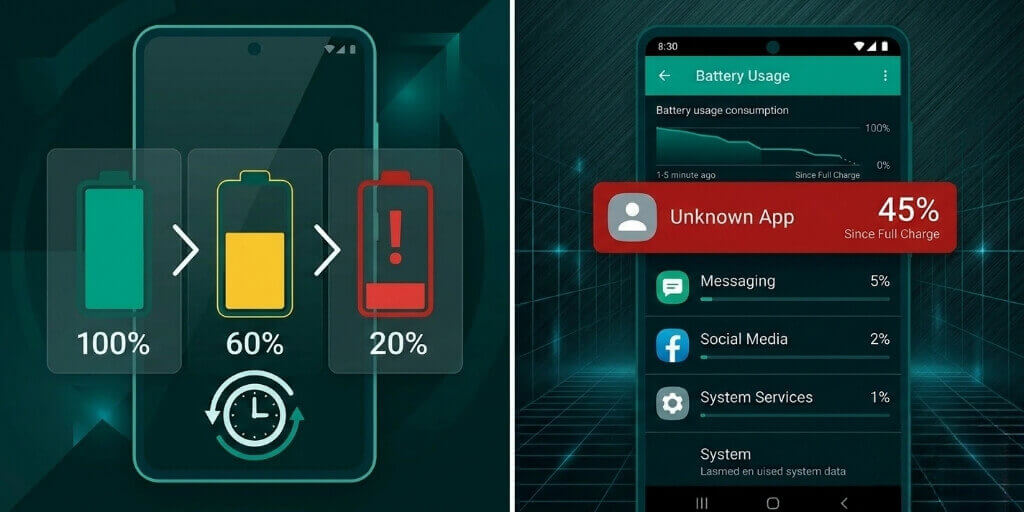
Few things are more annoying than watching your Android battery drop 10% in minutes, even when you’re barely using your phone.
I’ve been there.
You charge to 100%, unplug… and somehow you’re back at 70% before lunch. 😤
The truth?
Fast battery drain isn’t random. It’s almost always caused by specific apps, settings, or system behavior. Once you fix those, your battery life improves immediately.
In this guide, I’ll show you real, proven solutions that actually work in 2026. No fake “battery saver apps”, no myths, no nonsense.
Let’s fix it properly.
- Why Android Battery Drains Fast (The Real Reasons)
- Check What’s Draining Your Battery First
- Fix Background App Drain (This Is Huge)
- Reduce Screen Battery Consumption
- Control Location, Bluetooth & Connectivity Drain
- Stop Battery Drain From Google Services
- Enable Android’s Built-In Battery Saver Properly
- Fix Battery Drain After Android Update
- When Battery Drain Is a Hardware Problem
- Charging Habits That Improve Battery Life
- Conclusion: Stop Battery Drain for Good
Why Android Battery Drains Fast (The Real Reasons)
Before fixing anything, you need to understand what’s killing your battery.
Common causes of fast battery drain:
- Apps running constantly in the background
- High screen brightness and long screen-on time
- Weak network signal (mobile data or Wi-Fi)
- Battery-heavy features like location, Bluetooth, and 5G
- Old or degraded battery hardware
- Poorly optimized apps or recent updates
Once you identify the cause, the fix becomes easy.
Check What’s Draining Your Battery First
Android already tells you exactly what’s eating your battery, most people just ignore it.
How to check battery usage:
- Open Settings
- Go to Battery → Battery usage
- Look at:
- Apps using the most power
- System items like Screen, Mobile Network, or Android System
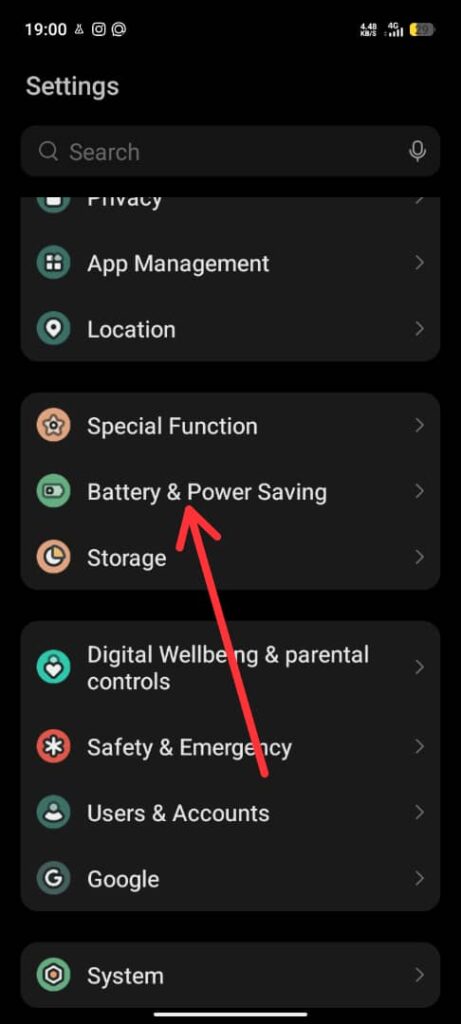
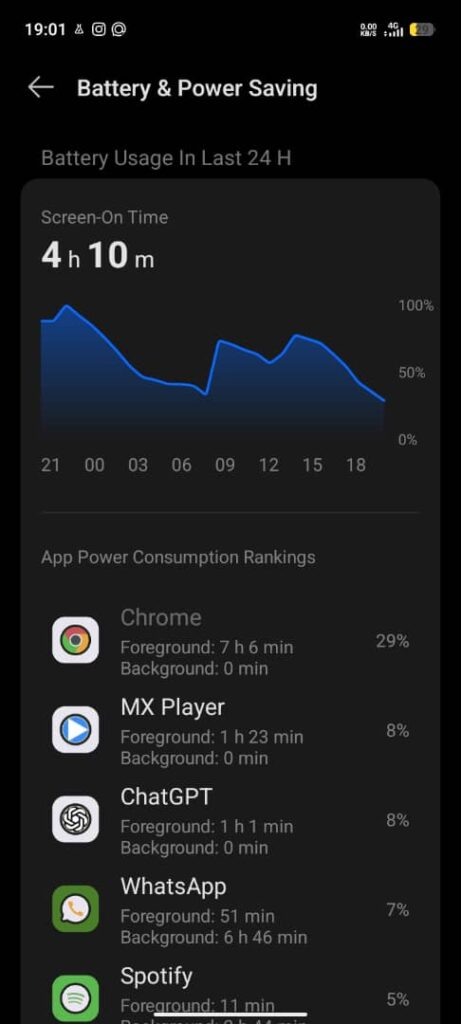
If one app is using way more battery than expected, that’s your first red flag 🚩.
Fix Background App Drain (This Is Huge)
Many apps keep running even when you’re not using them. Syncing, tracking, refreshing.
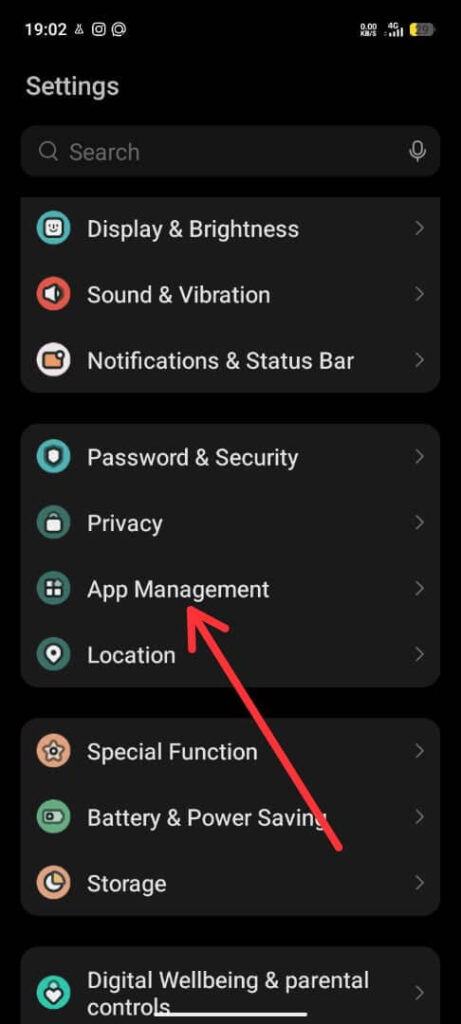
What to do:
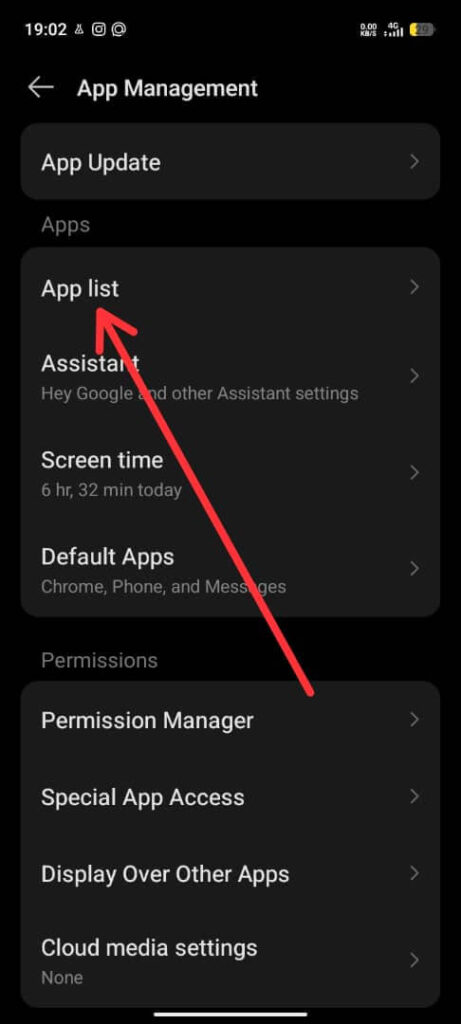
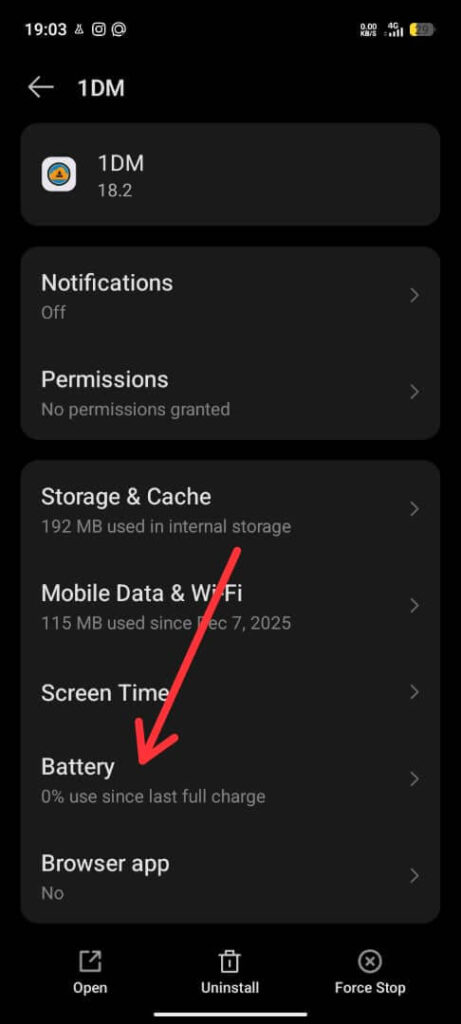
- Go to Settings → Apps
- Open heavy apps (Facebook, Instagram, TikTok, Google Maps, games)
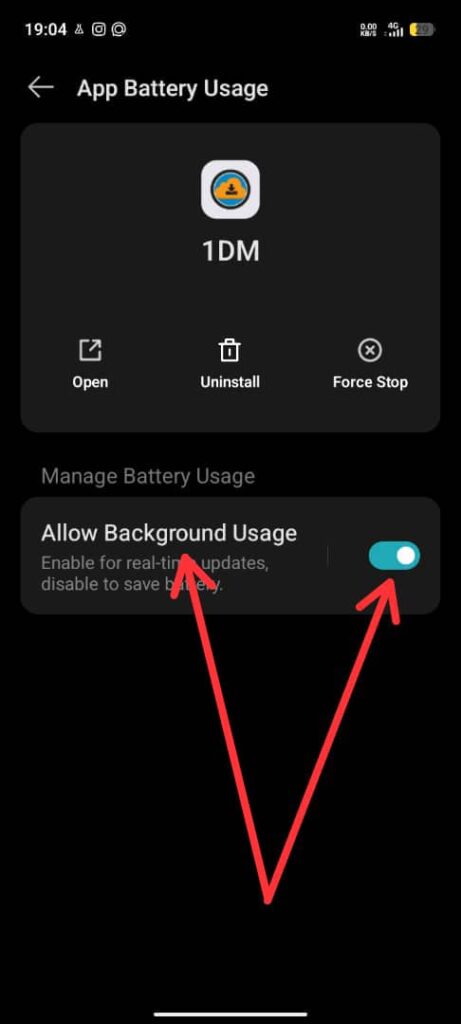
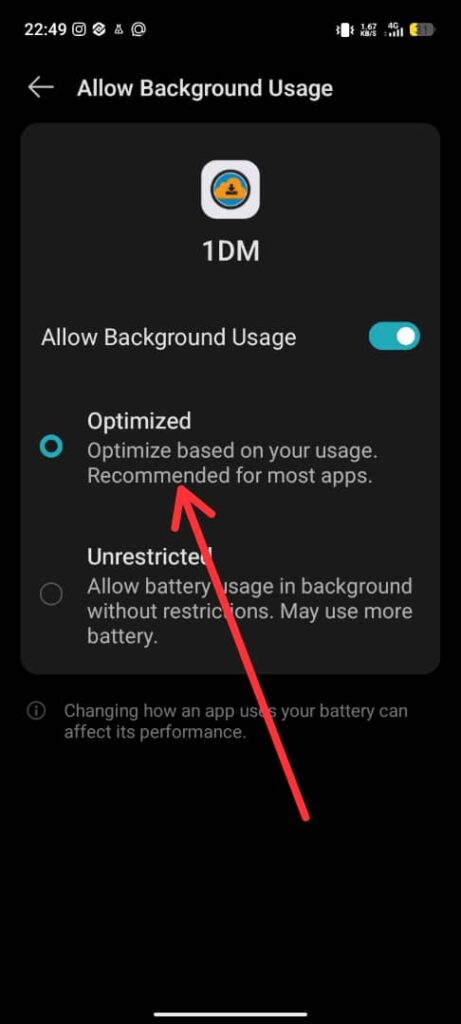
- Tap Battery
- Set them to Restricted or Optimized
Also do this:
- Disable background data for apps you don’t need always online
- Uninstall apps you haven’t used in months
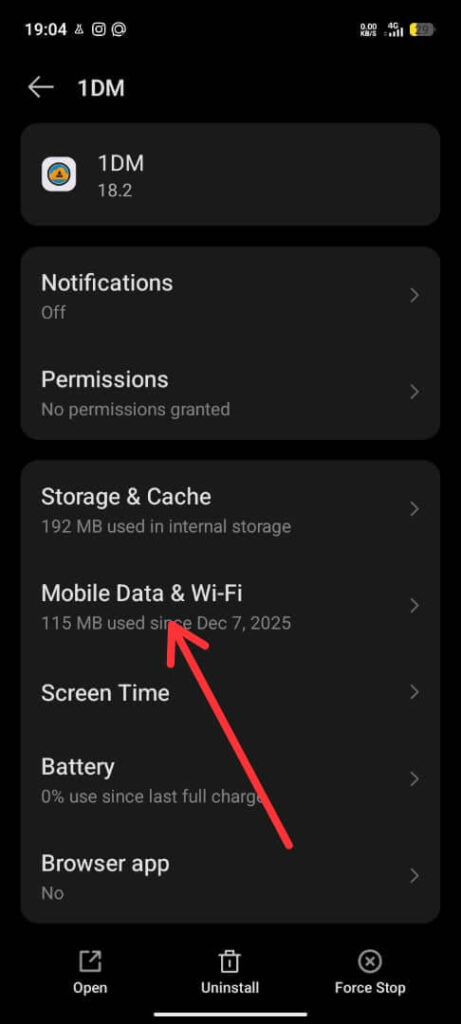
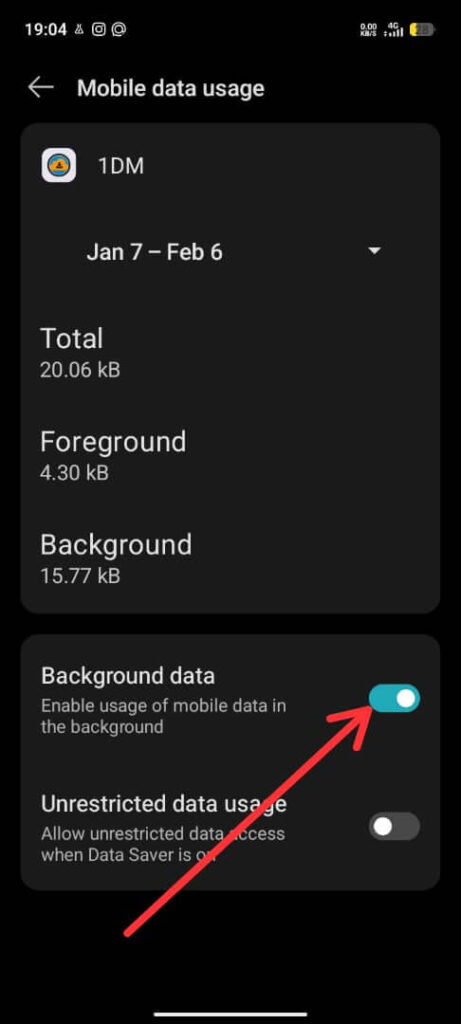
This alone can improve battery life by 20–40%.
Reduce Screen Battery Consumption
Your screen is usually the #1 battery killer.
Smart fixes:
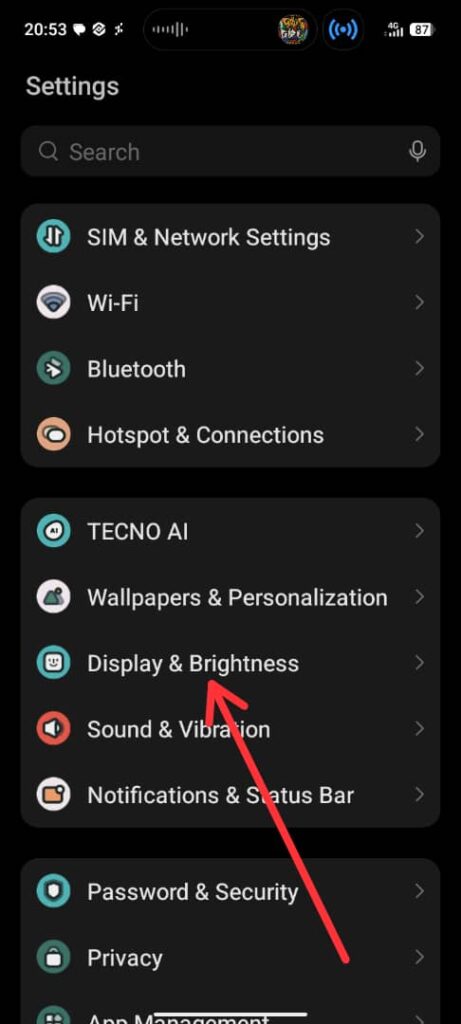
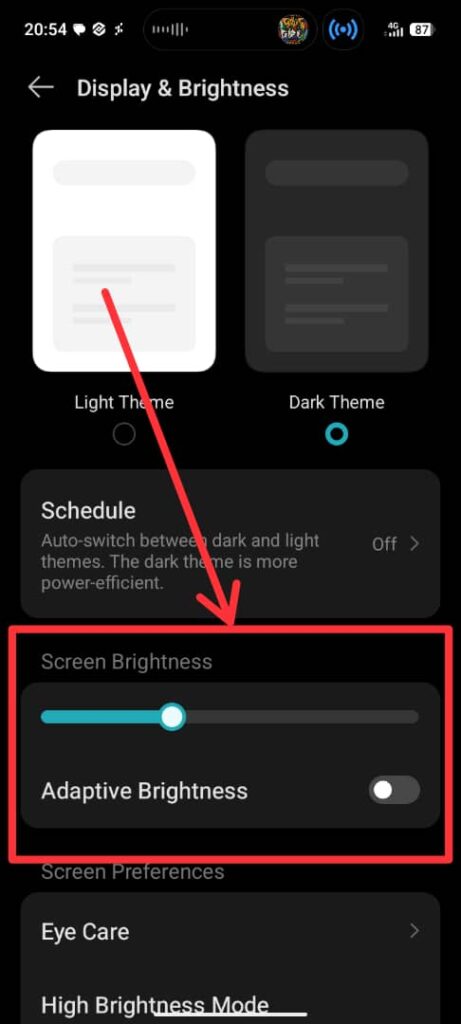
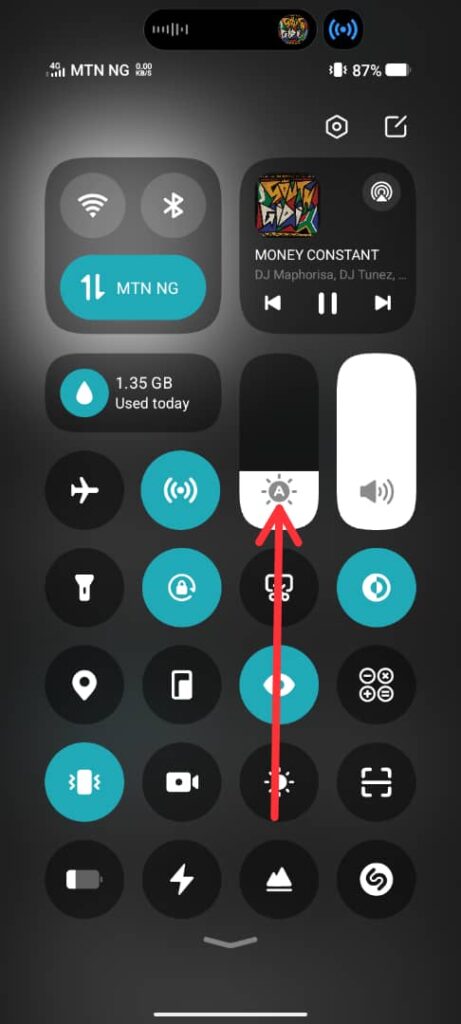
- Lower brightness manually (don’t rely only on auto-brightness)
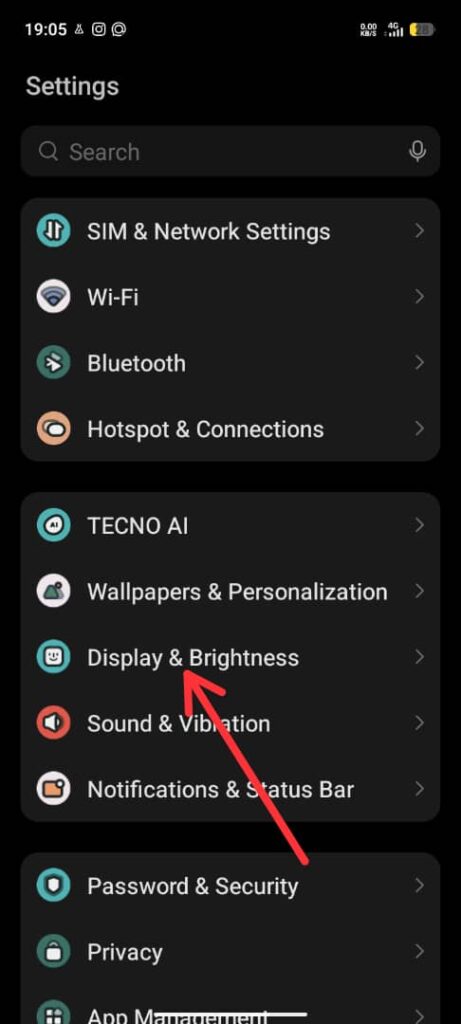
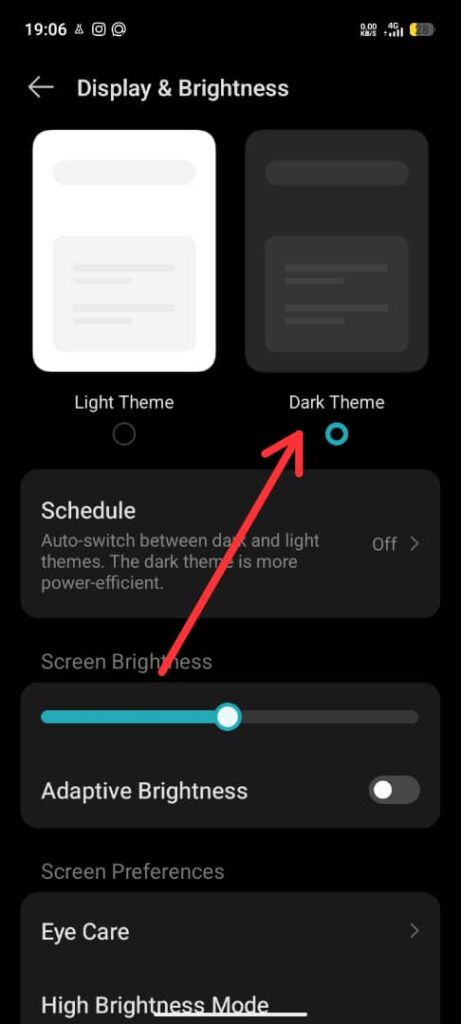
- Enable Dark Mode (especially on AMOLED phones)
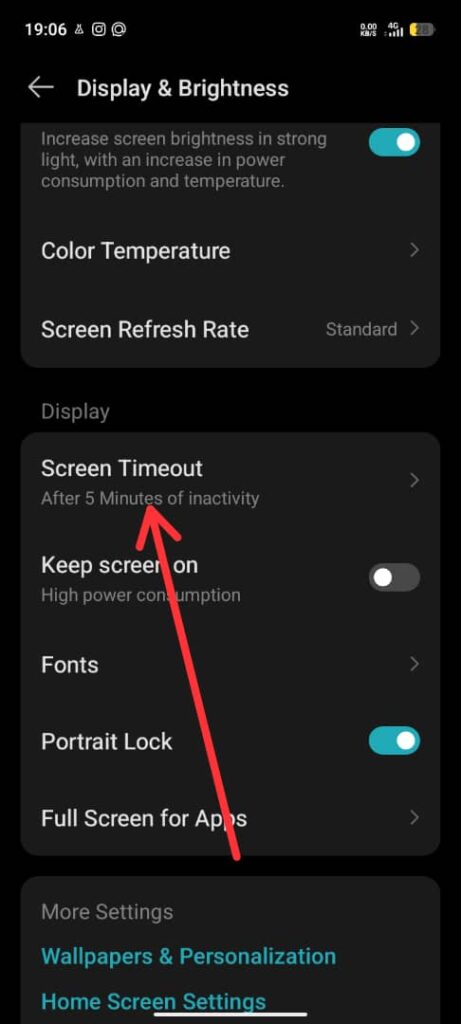
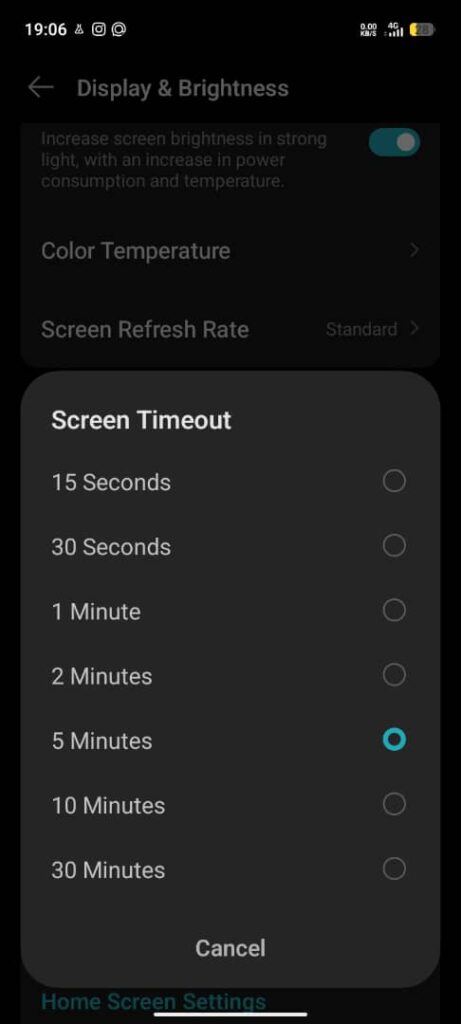
- Reduce screen timeout to 30–60 seconds
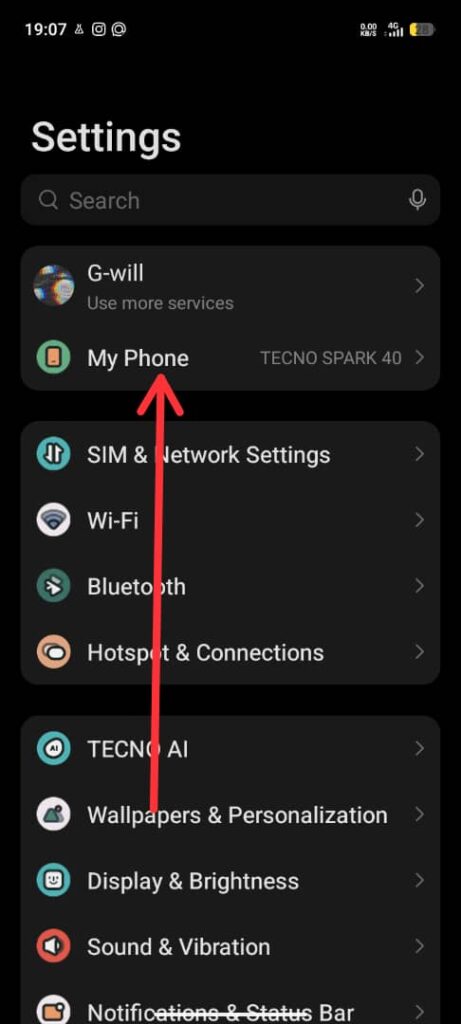
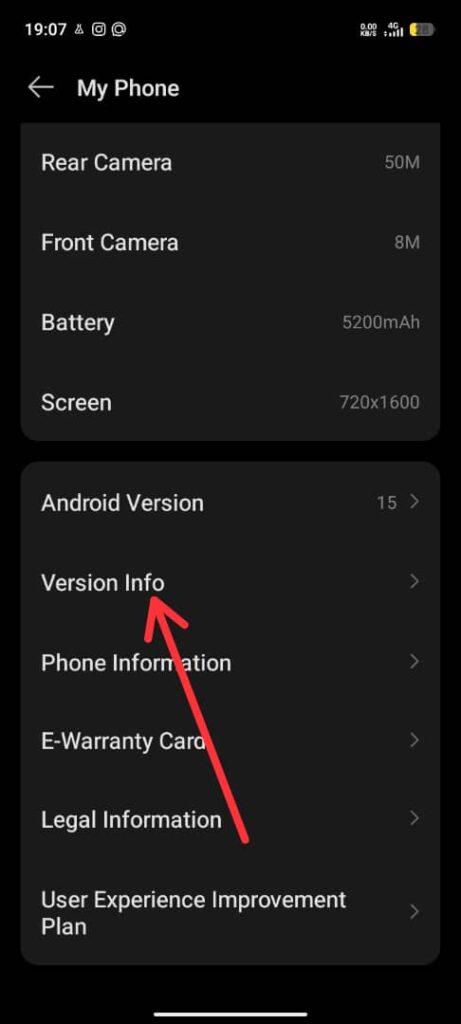
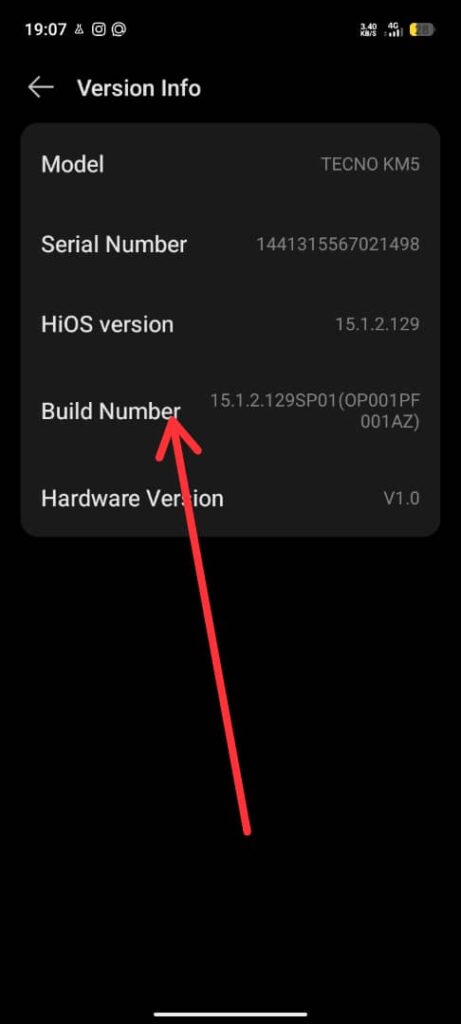
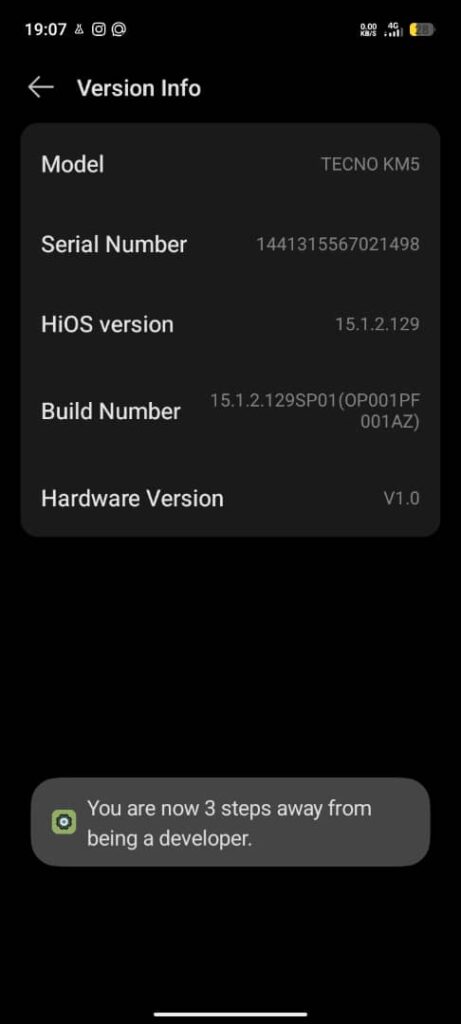
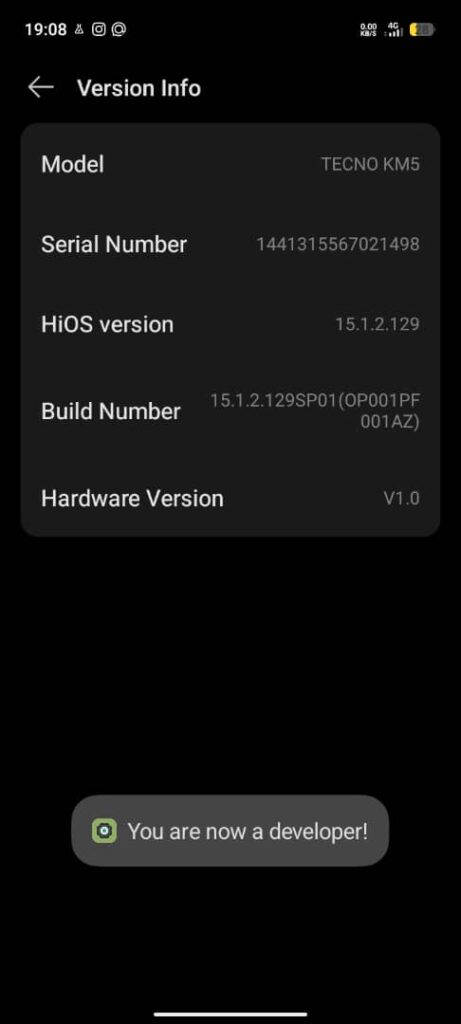
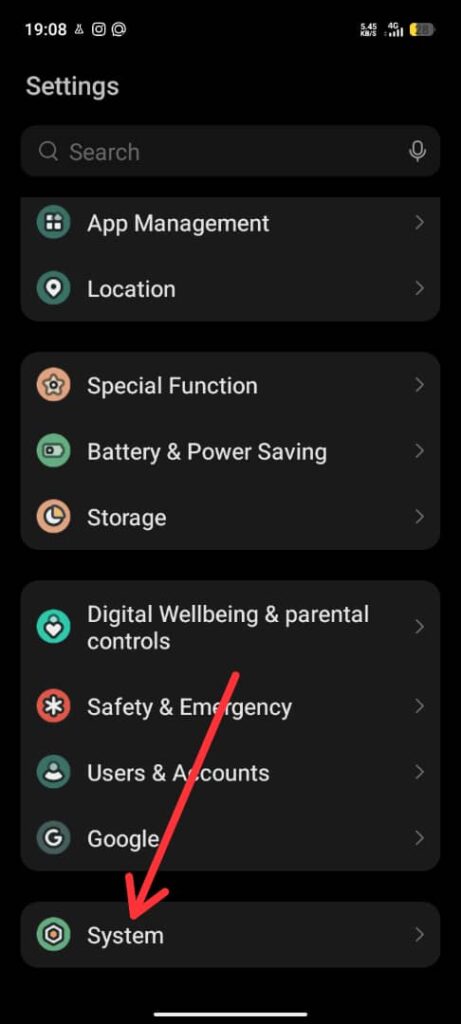
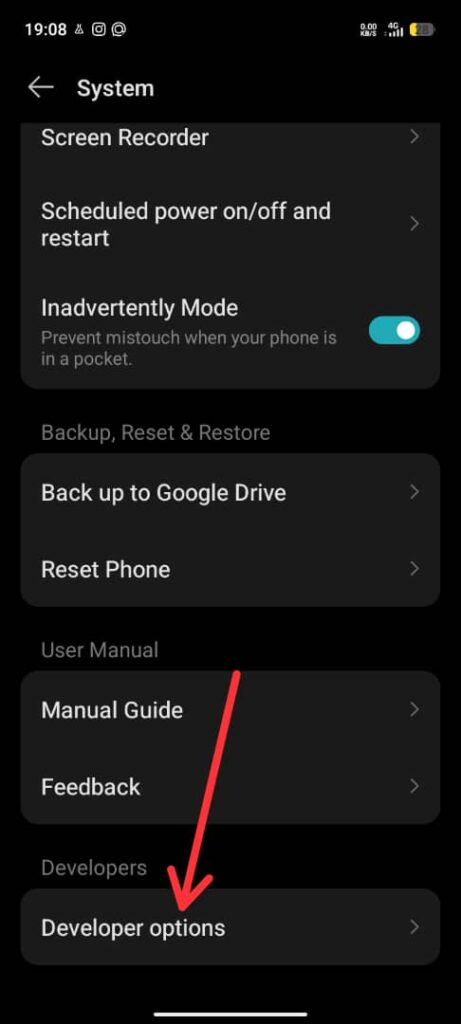
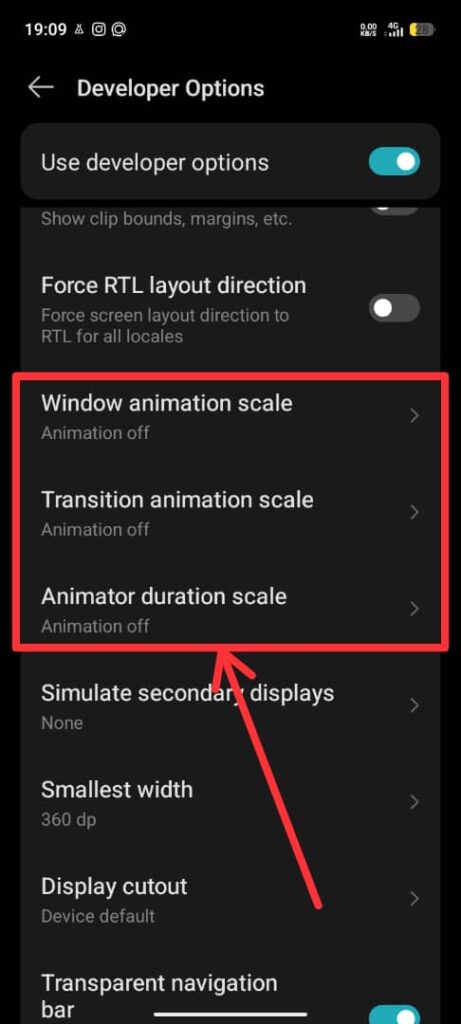
- Disable unnecessary animations (Developer Options → Animation scale)
To lower brightness manually:
To enable Dark Mode:
To reduce Screen Timeout:
To disable animations using Developer Options:
If your phone has an AMOLED display, Dark Mode can save real power, not just look cool.
Control Location, Bluetooth & Connectivity Drain
These features silently drain battery when left on.
What to turn off when not needed:
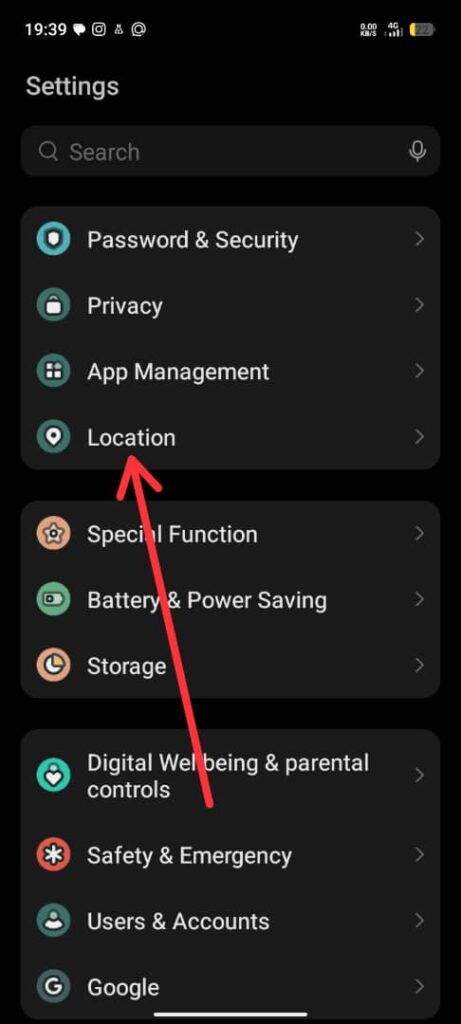
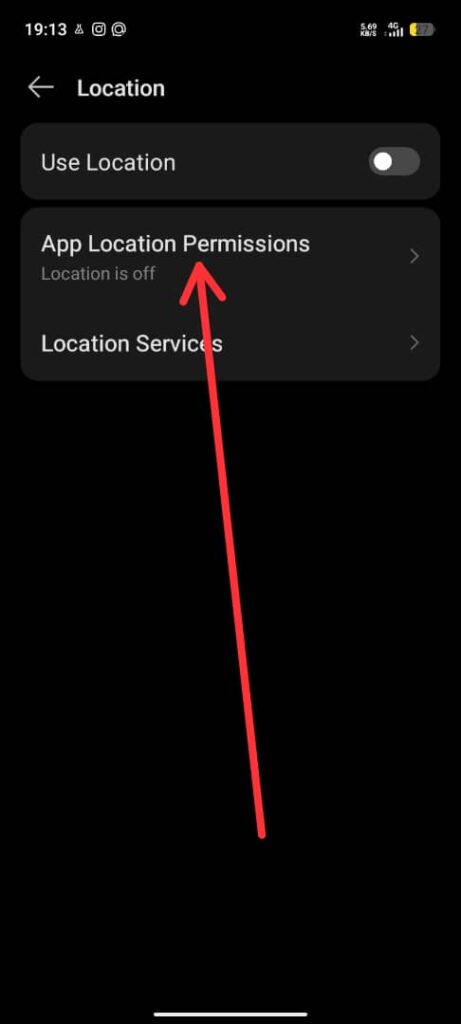
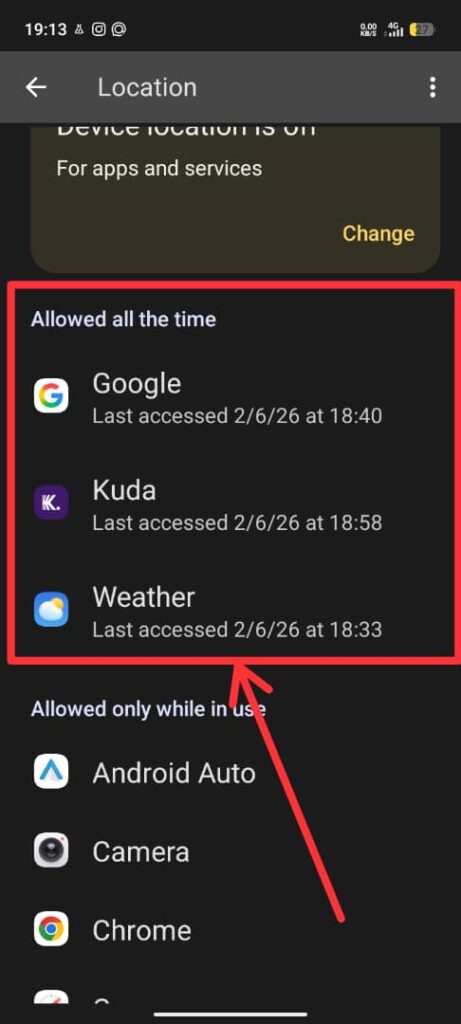
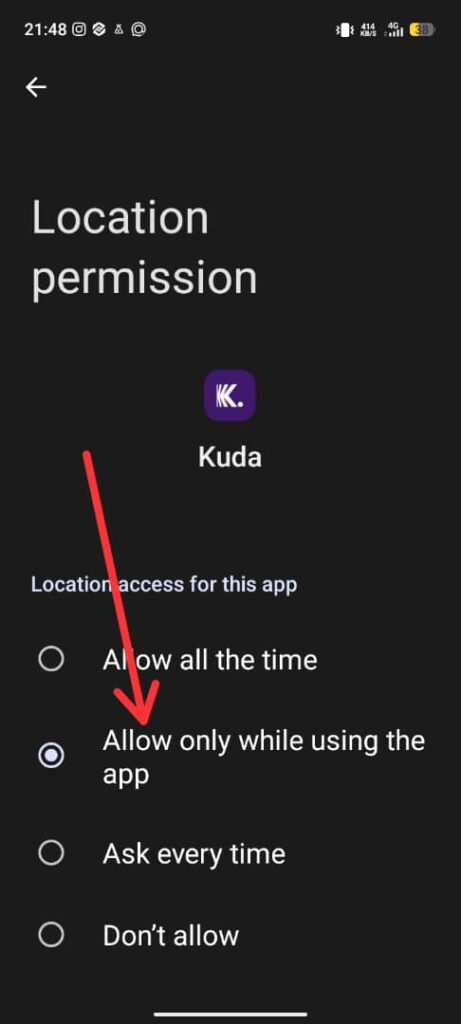
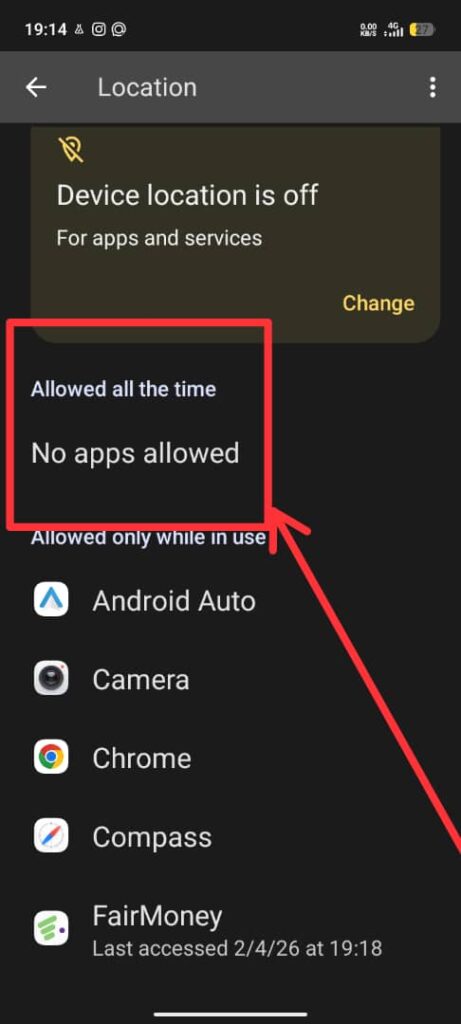
- Location (GPS) – switch to “While using app”
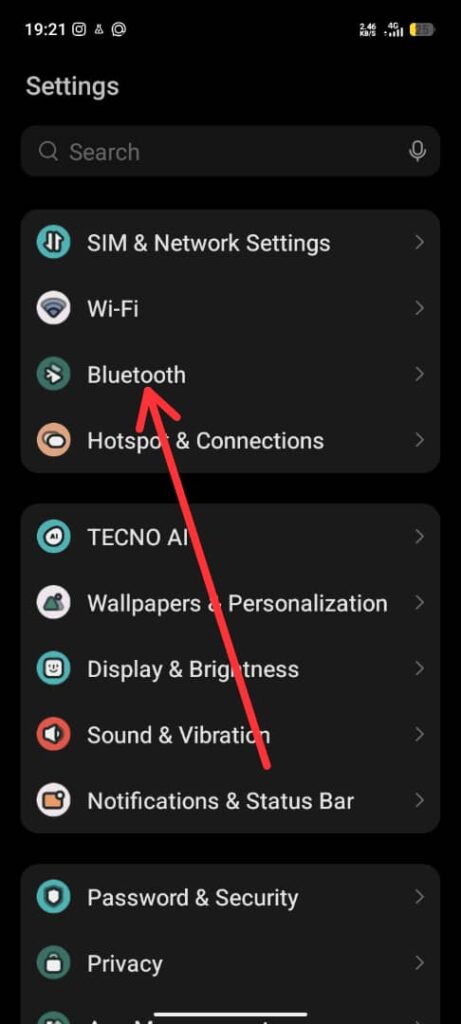
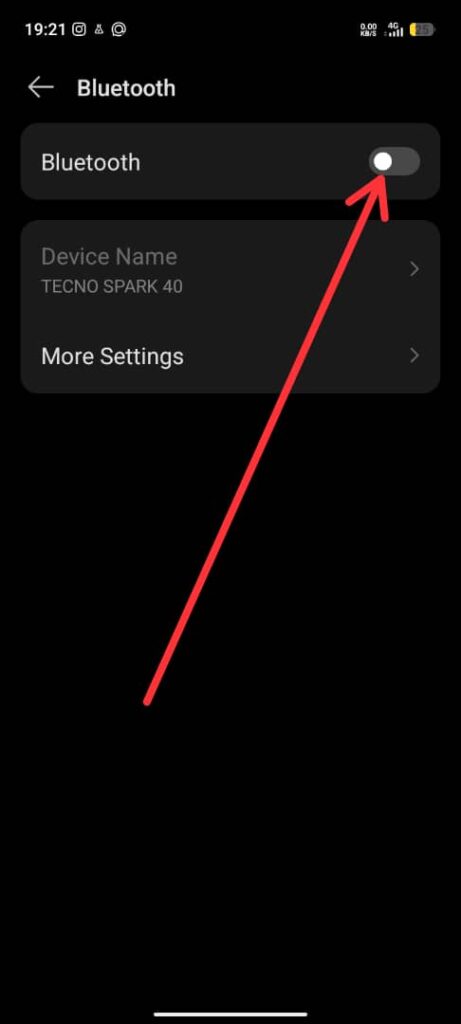
- Bluetooth – off unless connected
- Nearby device scanning
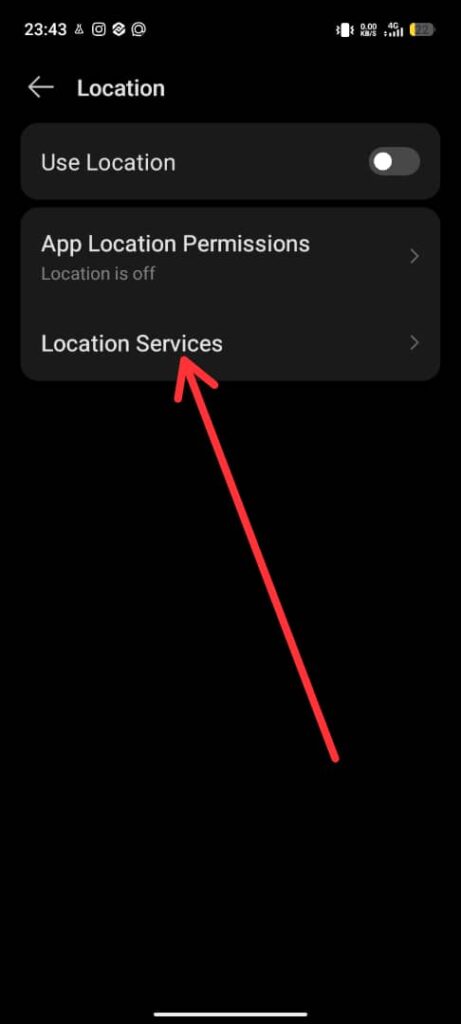
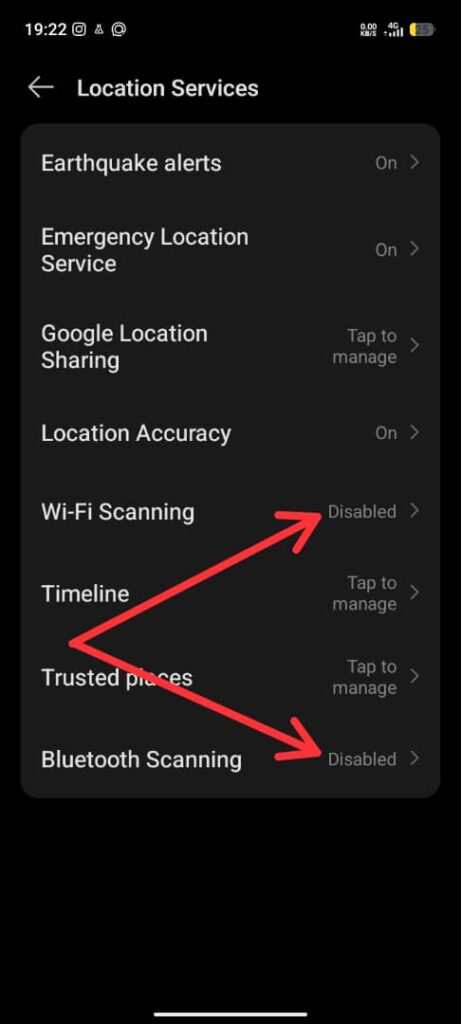
- Wi-Fi & Bluetooth scanning (in Location settings)
To Switch Location to “While Using App”:
You can turn off Bluetooth from settings or through quick settings:
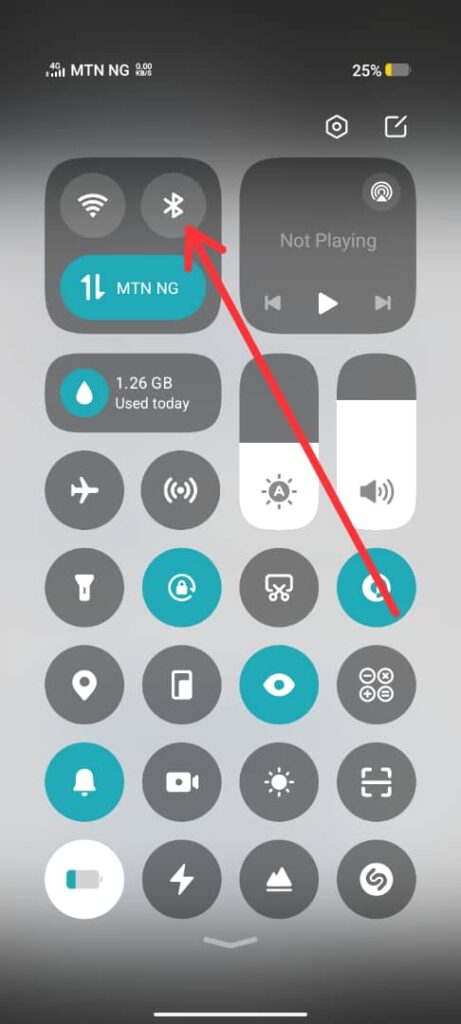
To turn off Nearby Device Scanning:
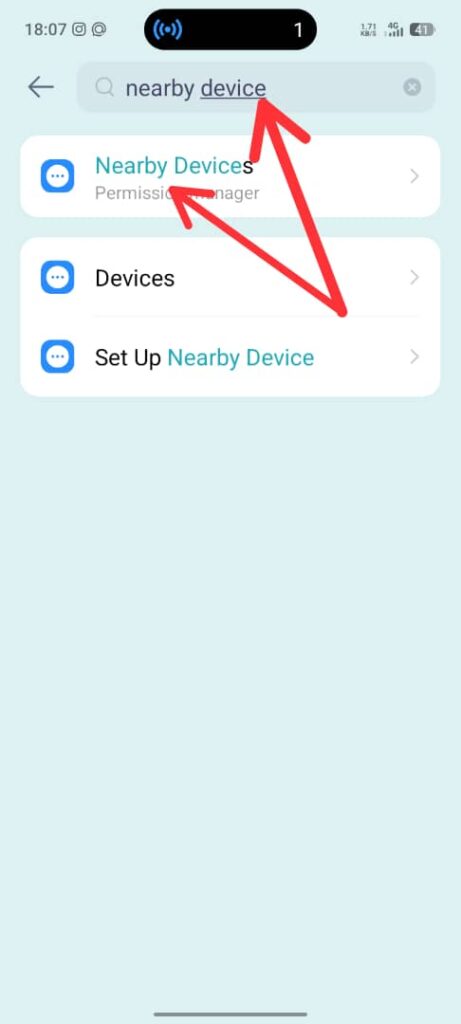
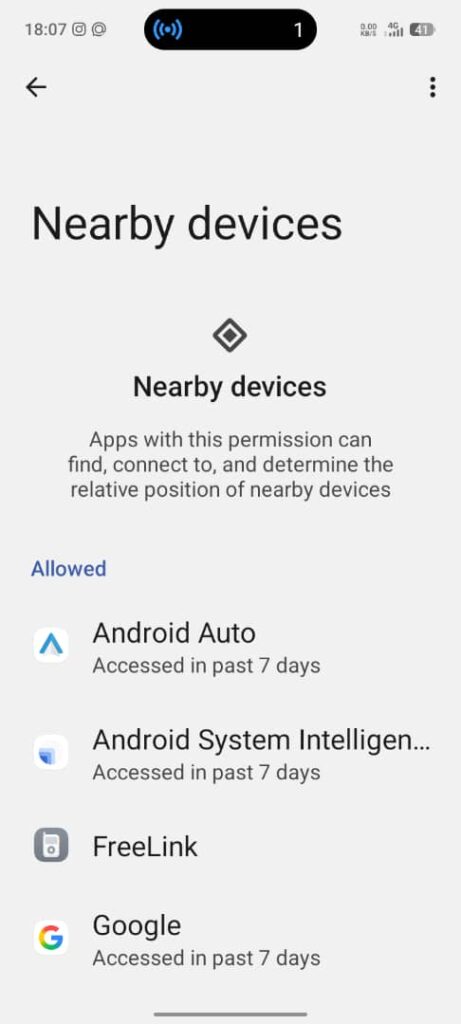
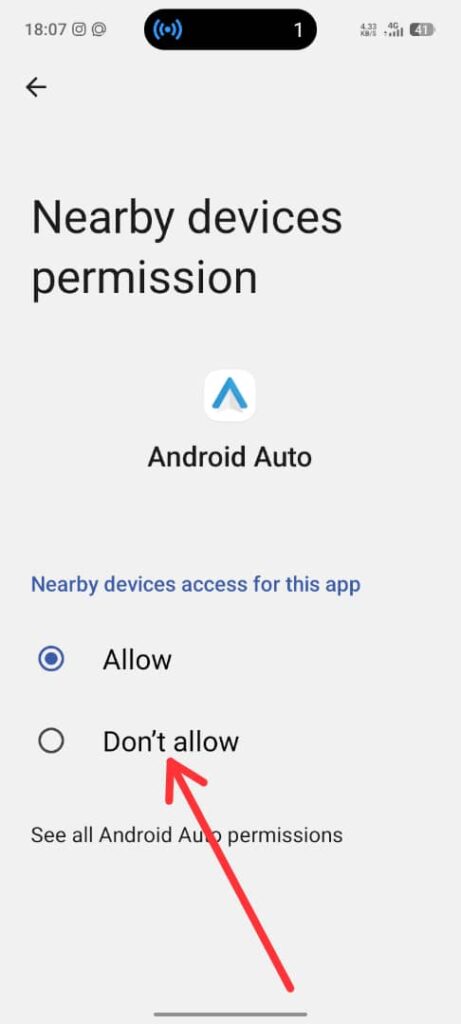
And to stop location scanning with Bluetooth and Wi-Fi:
Network tip most people don’t know:
If your signal is weak, your phone uses MORE power trying to stay connected.
In poor signal areas:
- Switch to Airplane mode
- Or force 4G instead of 5G
Stop Battery Drain From Google Services
Google services are useful, but they’re also sneaky battery hogs.
Optimize Google battery usage:
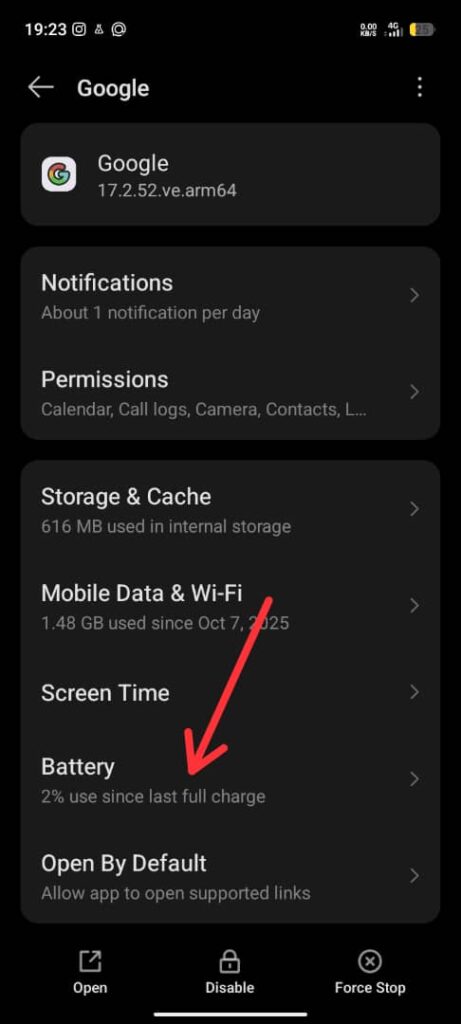
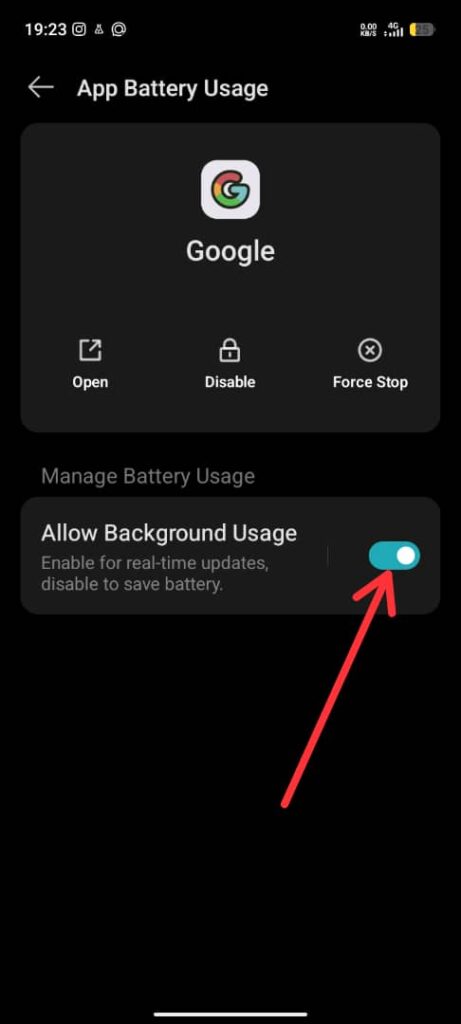
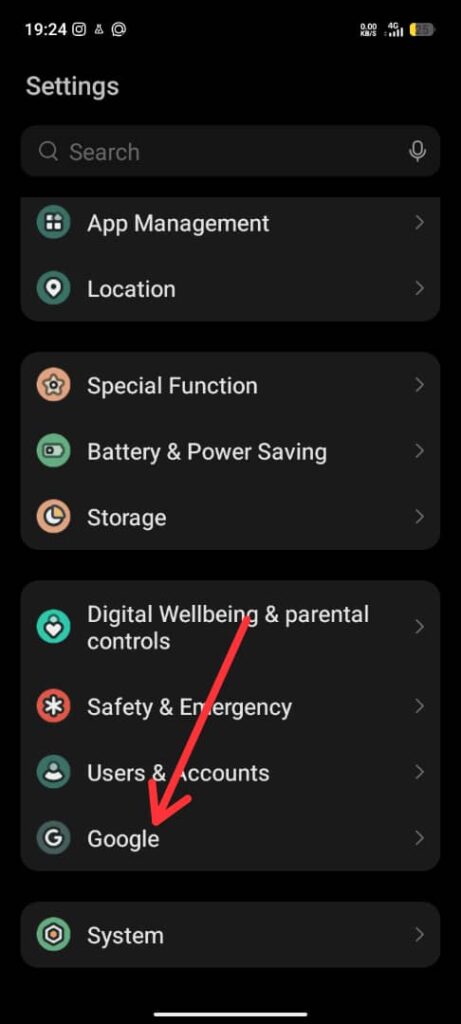
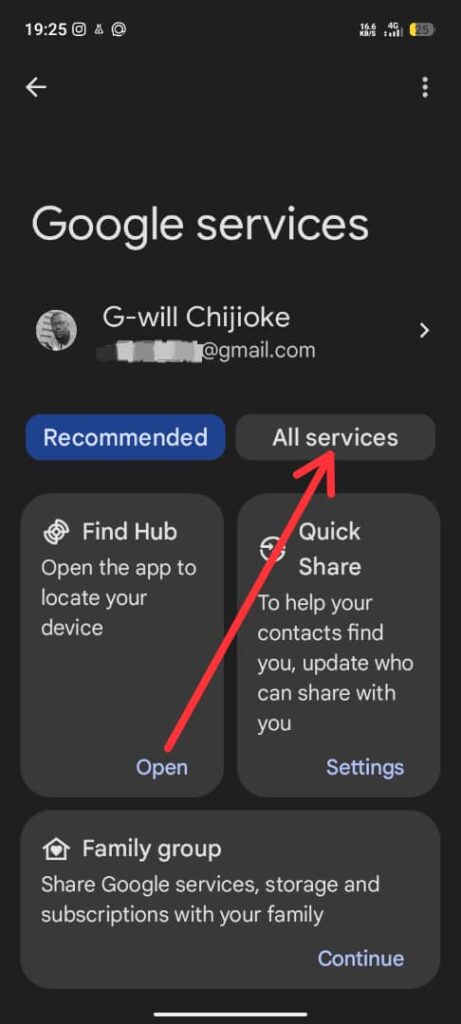
- Go to Settings → Apps → Google
- Restrict background activity
- Turn off:
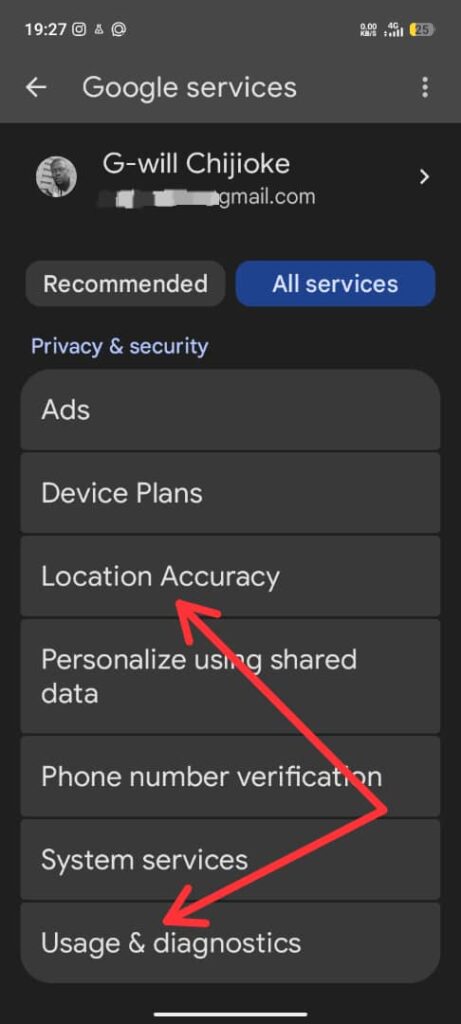
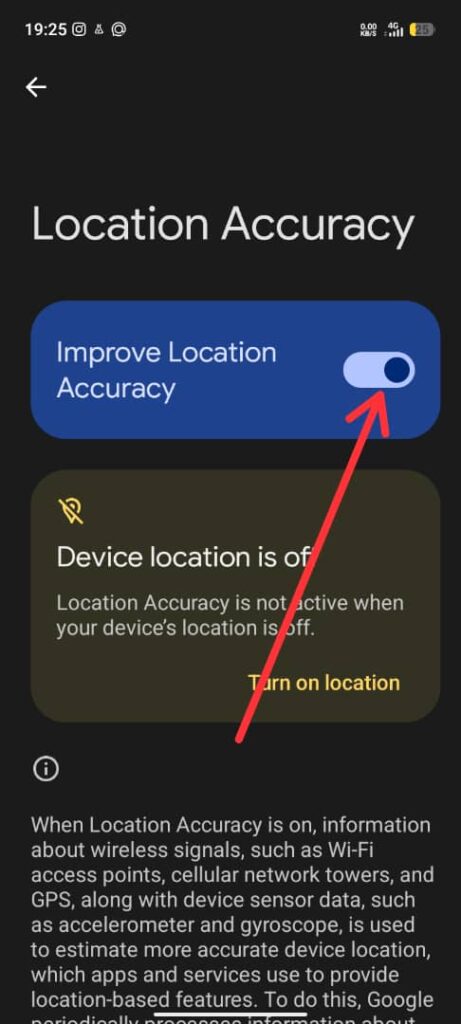
- Location Accuracy
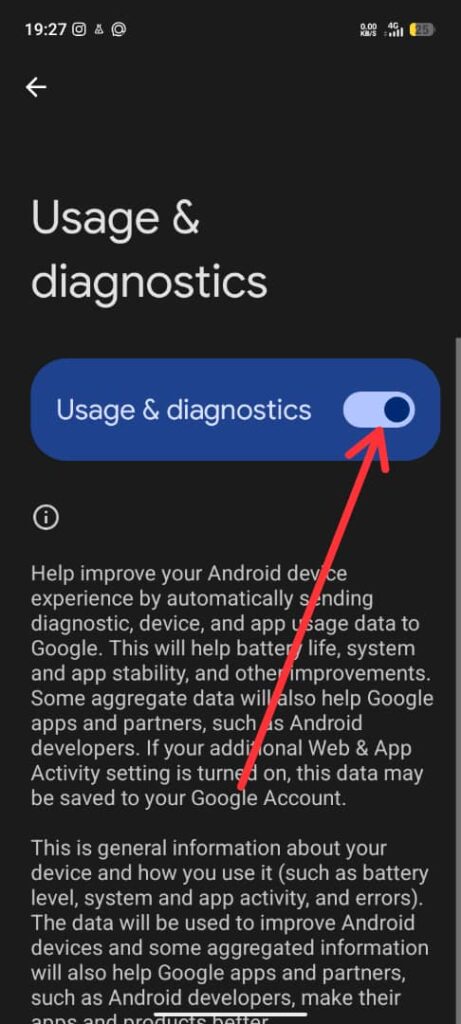
- Usage & Diagnostics
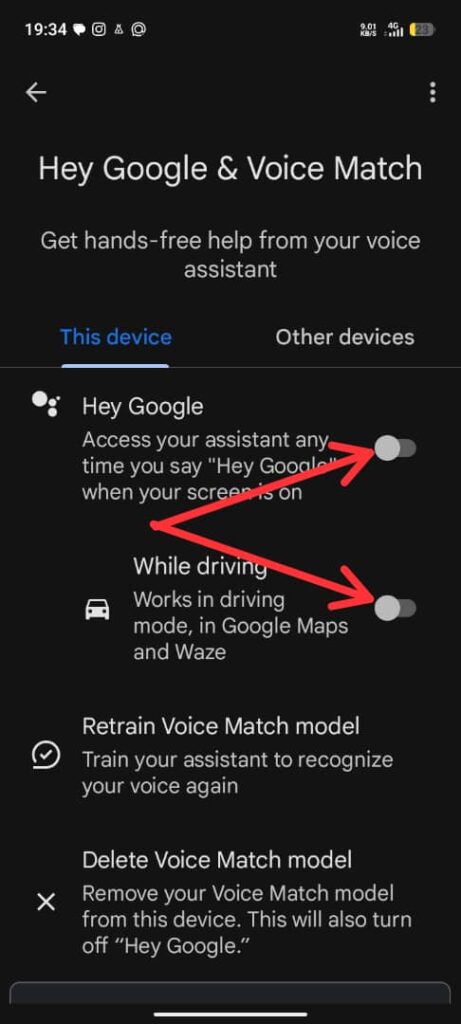
- Continuous voice detection (“Hey Google”)
To turn off Location Accuracy and Usage & Diagnostics:
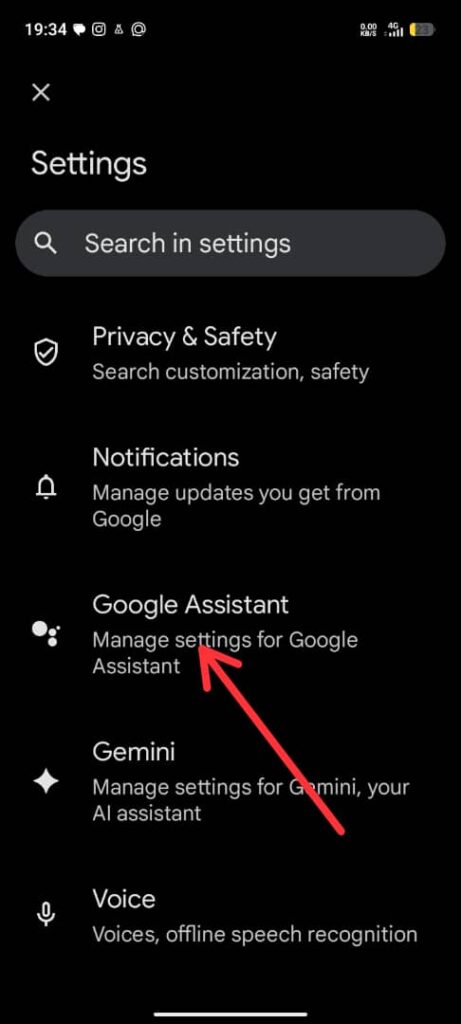
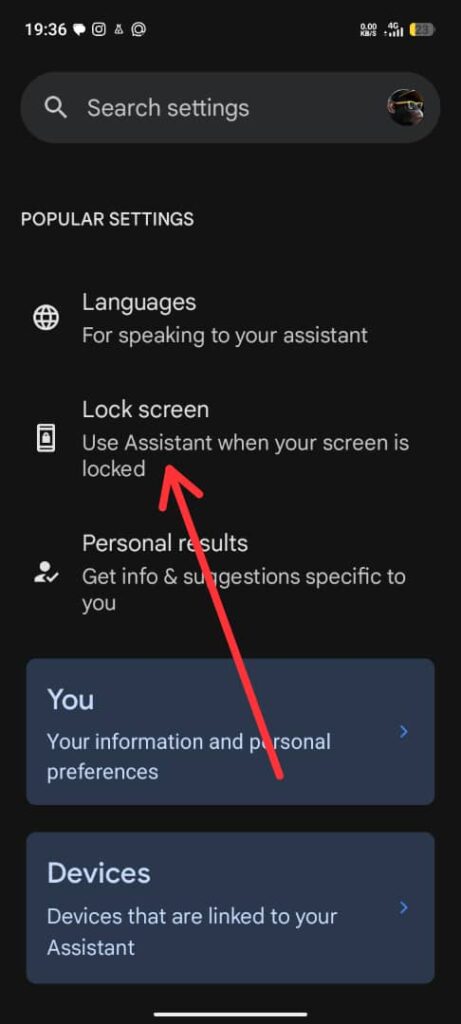
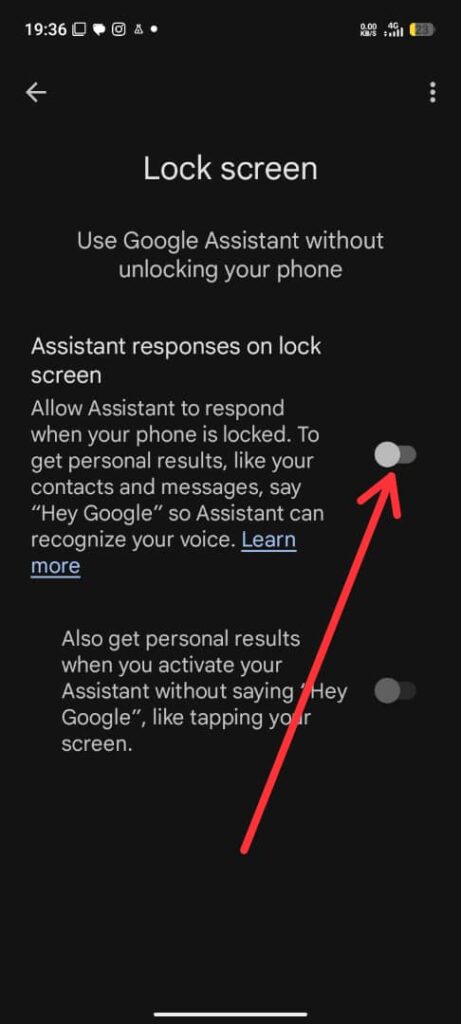
To prevent “Hey Google” detection in the background:
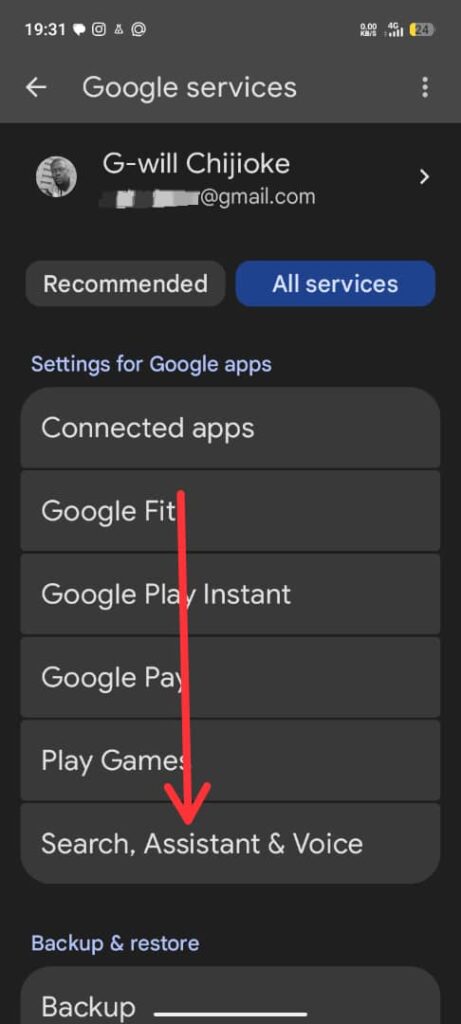
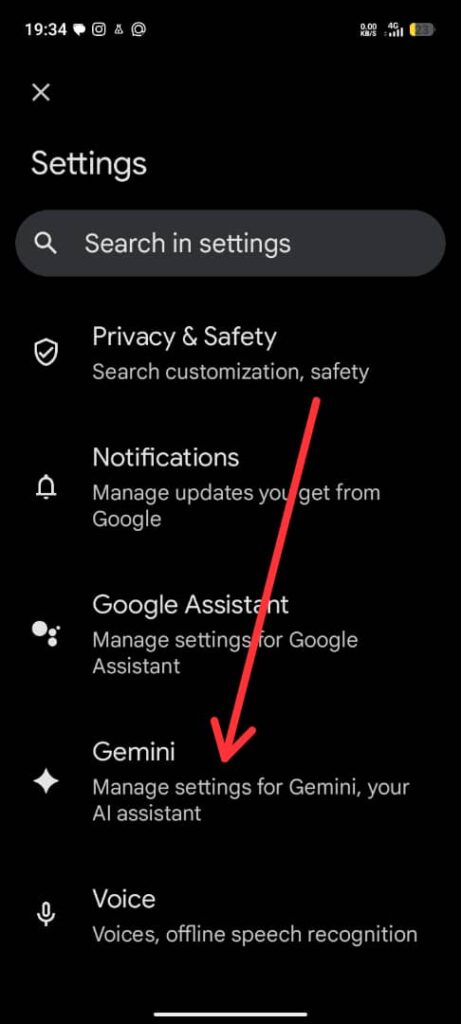
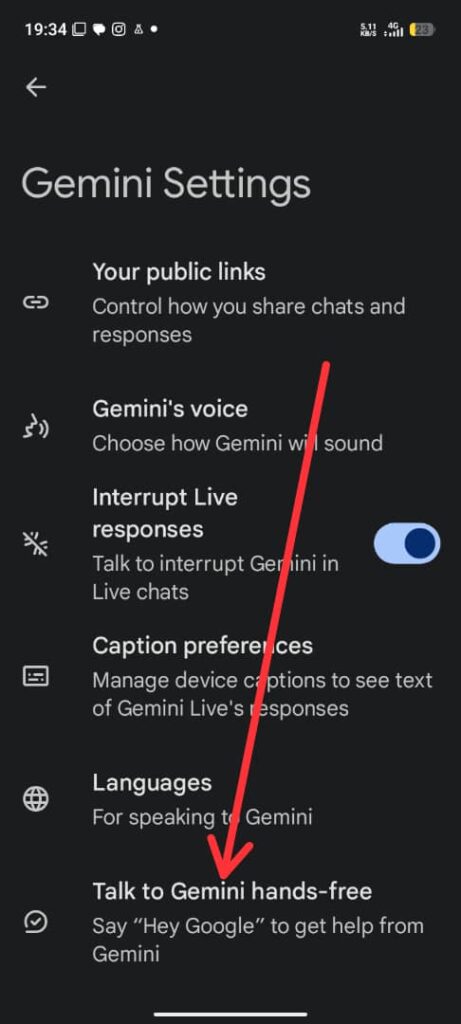
Also check Google Play Services battery usage. If it’s unusually high, restart your phone.
Enable Android’s Built-In Battery Saver Properly
Battery Saver actually works if used correctly.
Best settings:
- Enable Battery Saver
- Turn on Battery Saver at 20–30%
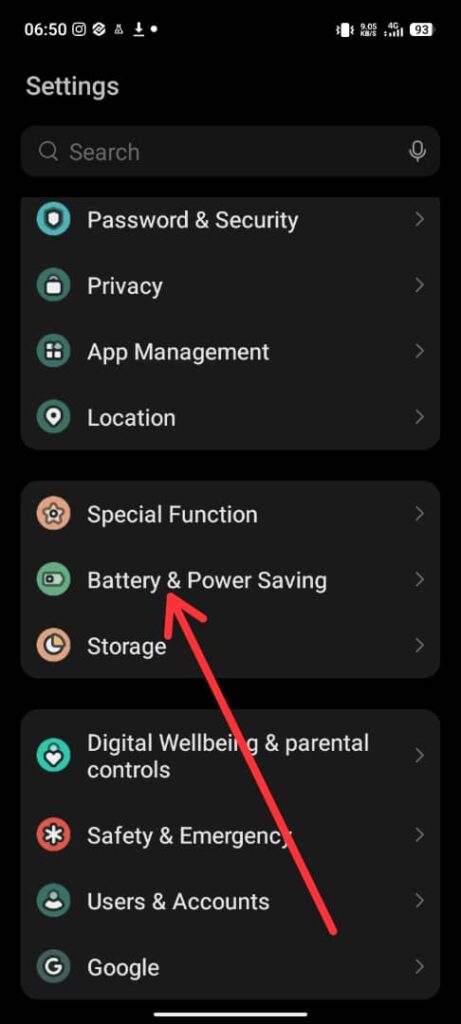
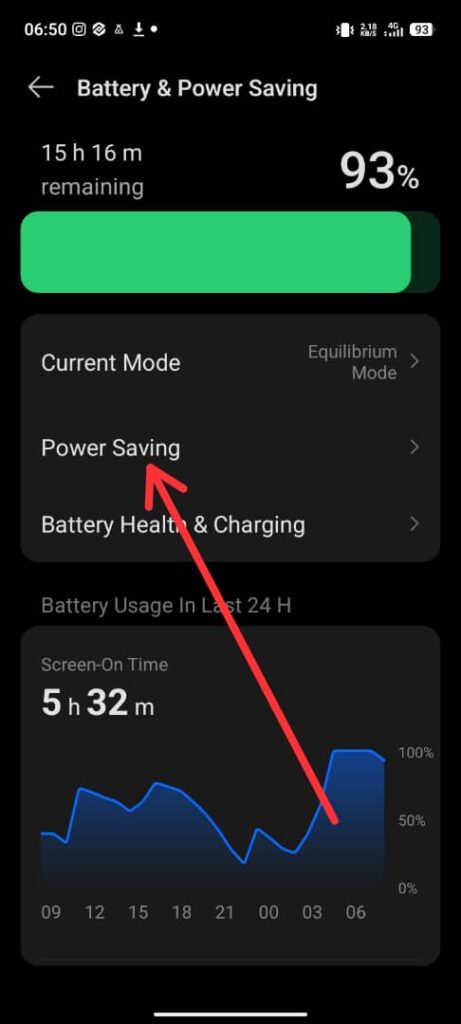
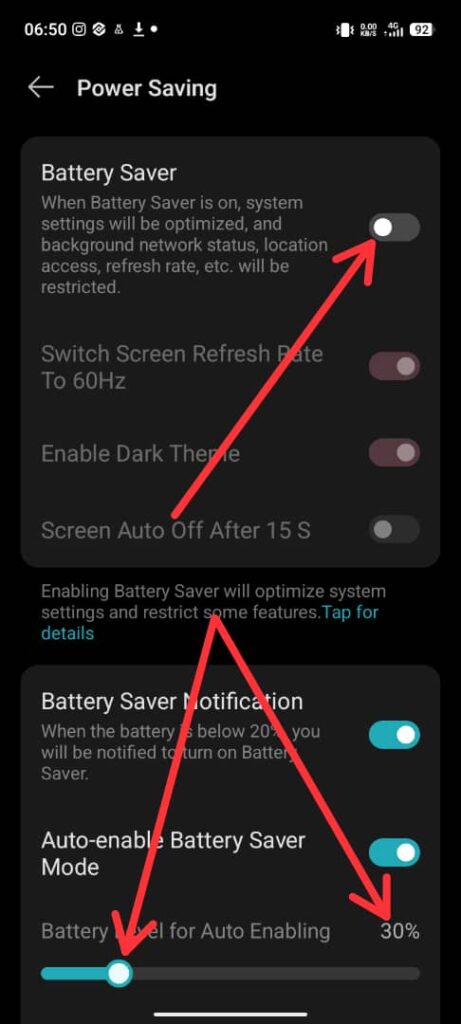
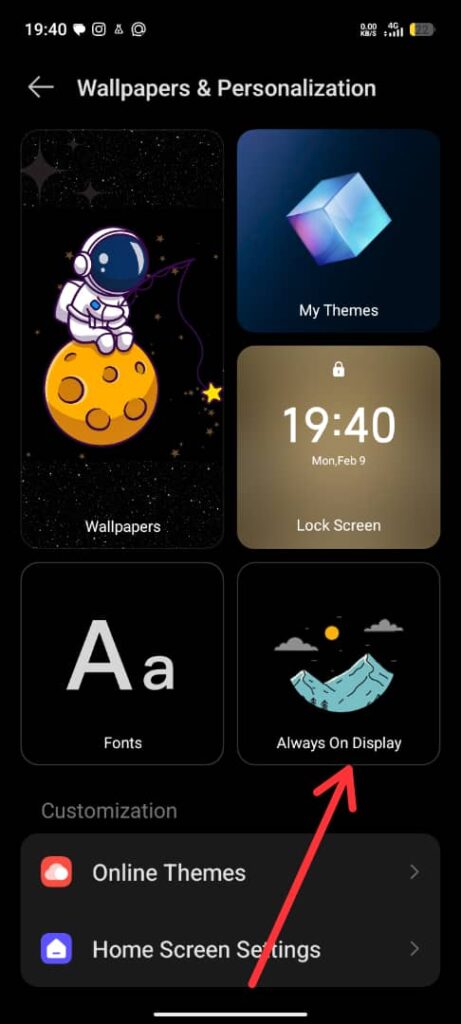
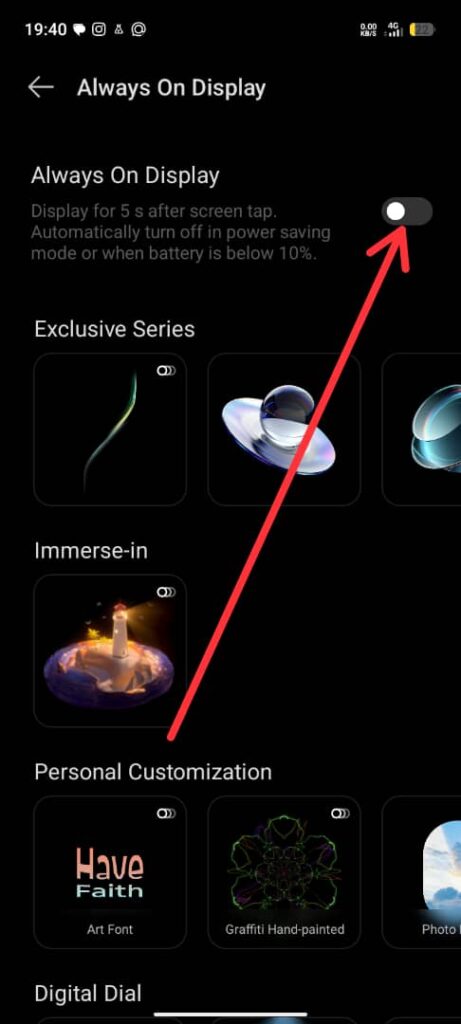
- Disable “Always-on display” when Battery Saver is on
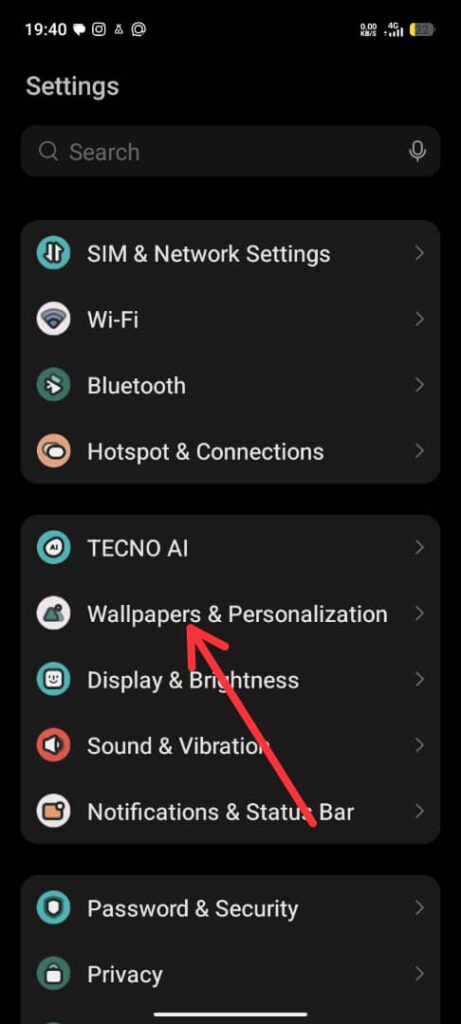
Avoid third-party battery saver apps. Most of them make battery drain worse.
Fix Battery Drain After Android Update
Battery drain after an update is common, and usually temporary.
What helps:
- Restart your phone (simple but effective)
- Clear cache partition (if supported)
- Let the phone settle for 1–3 days
- Check for app updates in Play Store
If one app started draining battery after an update, uninstall or downgrade it.
When Battery Drain Is a Hardware Problem
Sometimes, it’s not software, it’s the battery itself.
Signs of a dying battery:
- Battery drops fast below 30%
- Phone shuts down at 20–40%
- Phone heats up while charging
- Battery life suddenly much worse than before
If your phone is 2+ years old, battery degradation is normal.
A battery replacement is often cheaper than buying a new phone, and feels like new again.
Charging Habits That Improve Battery Life
Bad charging habits slowly kill batteries.
Do this instead:
- Keep battery between 20% – 80%
- Avoid charging overnight daily
- Use original or certified chargers
- Avoid heavy usage while charging
Heat + overcharging = faster battery damage.
See my post on 7 Charging Mistakes that damage phone battery for a more detailed guide on this.
Conclusion: Stop Battery Drain for Good
If your Android battery is draining fast, don’t panic, it’s fixable.
Most of the time, the problem comes from:
- Background apps
- Screen settings
- Network issues
- Poor app optimization
Fix those, and your phone will easily last longer each day.
For more proven battery-saving hacks, read my full guide: “15 Unexpected Ways to Improve Battery Life on Android Devices.”
If you want more real Android fixes, tips, and hidden features, bookmark this site and check back later.
More coming 🔥




Well done.
A really good post, and I’ll be back again.
Thanks 👍