

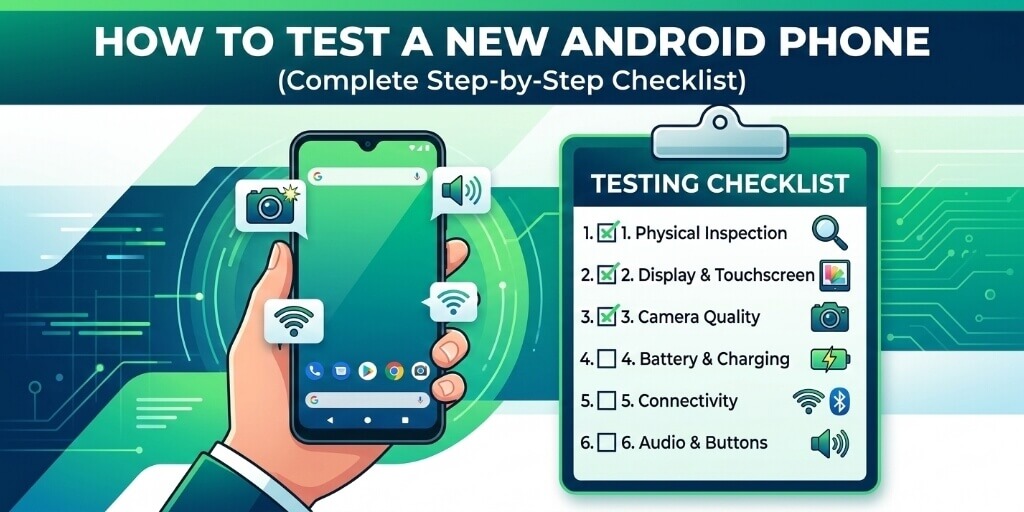
Unboxing a brand-new Android phone is exciting. The shiny screen, fast performance, and that “new device” feeling. But here’s the reality: even new phones can ship with hidden defects like dead pixels, faulty sensors, overheating issues, or poor battery health.
The good news is that most retailers give you a 7 to 14 day return window. That short period is your chance to run a proper Android hardware diagnostic check and make sure everything works exactly as it should.
This checklist will show you how to test a new Android phone step by step, including a dead pixel test on Android, checking new phone battery health, and using Android secret codes to uncover hidden hardware issues. Spend a few minutes running these checks now, it could save you from getting stuck with a defective device later.
Quick Android Phone Test Checklist (5 Minutes)
If you’re in a hurry, test these first:
- Screen & touch response
- Buttons & fingerprint sensor
- Verify IMEI number with *#06#
- SIM card detection & mobile network
- Speaker, mic & call quality
- Wi-Fi, Bluetooth & GPS
- Camera
- Battery drain & charging
- Test app compatibility
If any of these fail, stop setup and return the phone.
- Phase 1: Out-of-the-Box Physical Inspection
- Phase 2: The Initial Quick Setup (Pre-Test Readiness)
- Phase 3: Display and Touchscreen Diagnostics
- Phase 4: The Secret Hardware Diagnostic Codes
- Phase 5: Audio, Microphone, and Haptics (The “Vibe” Test)
- Phase 6: Camera Array and Sensor Verification
- Phase 7: Battery Health and Thermal Performance (The Stress Test)
- Phase 8: Connectivity, Network, and Storage (The “Ghost Data” Audit)
- Phase 9: Biometric Sensor Testing (Fingerprint & Face Unlock)
- Conclusion & Next Steps
Phase 1: Out-of-the-Box Physical Inspection
Before you even power the phone on, start with a careful physical inspection. Some hardware defects are easier to spot when the device is still completely unused.
Hold the phone under bright direct light and slowly examine the entire chassis. Look for scratches on the screen, dents on the frame, uneven glass edges, or gaps between the display and the body.
Next, check the buttons and ports. Press the power and volume buttons to confirm they feel firm and click properly. Inspect the charging port, SIM tray, and speaker grills to make sure nothing looks misaligned or poorly finished.
Finally, examine the camera housing closely. The camera glass should be perfectly clean with no dust, scratches, or uneven placement.
Think of this step like the careful inspection done in JerryRigEverything‘s videos(but without destroying your phone lol 😆), looking for early signs of structural issues such as slight frame bends, loose components, or screen gaps. Catching these problems now makes returning the device much easier within the store’s return window.
Phase 2: The Initial Quick Setup (Pre-Test Readiness)
Before running any Android hardware diagnostic check, avoid doing a full setup immediately. Spending hours transferring apps and files only to discover a dead pixel on Android or a faulty sensor can waste valuable time within your return window.
The goal here is a Minimum Viable Setup. Just enough configuration to run proper tests without background processes interfering with results.
Follow this quick setup protocol before installing your regular apps:
Skip Data Migration
When the setup wizard asks you to “Copy apps & data,” select “Don’t copy.”
Testing the phone in a clean state helps you confirm that any lag, heating, or glitches are hardware-related and are not caused by old apps or corrupted backups.
Connect to Wi-Fi Only
Skip inserting your SIM card for the first few minutes.
This prevents carrier activation processes, background downloads, and network pings from interfering while you check the device hardware.
Sign Into Google (Play Store Access)
Log in to your Google account so you can access the Play Store and download diagnostic apps.
Avoid adding secondary email accounts or syncing services for now. The objective is to keep the phone running in its cleanest testing state.
Postpone Biometrics
Skip Fingerprint and Face Unlock during the setup wizard.
You’ll test these sensors later as part of a dedicated diagnostic step at Phase 9, which makes it easier to detect if recognition is slow or inaccurate.
Disable Auto-Brightness
Go to:
Settings → Display → Adaptive Brightnessand turn it off.
Then manually set brightness to 100% so you can properly inspect the display for screen bleeding, color inconsistencies, or brightness unevenness.
Set Screen Timeout to 5 Minutes
Navigate to:
Settings → Display → Screen Timeoutand set it to 5 minutes.
This prevents the screen from turning off while you perform detailed checks like the dead pixel test on Android.
Check for System Updates Immediately
Go to:
Settings → System → System Updateand check for updates.
Manufacturers often release “Day 1” patches that fix known issues such as camera bugs, battery optimization problems, or touch sensitivity glitches. Installing these ensures your upcoming tests reflect the phone’s latest stable performance.
Phase 3: Display and Touchscreen Diagnostics
The display is the part of your phone you interact with the most, so this test is critical. Even premium devices can occasionally ship with dead pixels, uneven brightness, or touchscreen dead zones.
This phase helps you run a simple Android hardware diagnostic check to confirm the screen panel and touch layer are working perfectly.
Step 1: Run a Dead Pixel Test
To perform a dead pixel test on Android, you need to display solid colors across the entire screen.
You can do this in two ways:
Option 1: Use a Screen Test App
- Open the Play Store.
- Search for “screen test” or “dead pixel test.”
- Install a simple display test app.
- Cycle through solid colors like white, black, red, green, and blue.
Option 2: Use a YouTube Video
- Open YouTube.
- Search for “dead pixel test full screen.”
- Play the video and switch to full screen mode.
While the colors change, carefully scan the display for:
- Dead pixels (tiny black dots that never light up)
- Stuck pixels (pixels stuck on a single color)
- Uneven brightness or discoloration
Step 2: Check for Screen Bleeding
Play a full black screen and increase the brightness to 100%.
Look around the edges and corners for light leaks or glowing patches. This is known as backlight bleed, and it’s easier to see in a dark room.
A small amount can be normal, but large bright patches may indicate a defective display panel.
Step 3: Test Touchscreen Accuracy
Next, test the touchscreen to ensure there are no dead zones or laggy areas.
- Long-press any app icon on the home screen.
- Slowly drag the icon across every edge and corner of the display.
- Move it along the top edge, bottom edge, and all four corners.
If the icon drops unexpectedly or stops moving, the phone may have a touchscreen detection problem.
Running these checks early ensures your display passes a full Android hardware diagnostic check before you move on to testing sensors, battery health, and hidden Android secret codes in the next phases.
Phase 4: The Secret Hardware Diagnostic Codes
Most Android phones include hidden USSD diagnostic codes (sometimes called Android secret codes). These codes bypass the normal settings interface and open low-level hardware testing menus built by the manufacturer.
They’re one of the fastest ways to run an Android hardware diagnostic check for sensors, display panels, vibration motors, and touch input. Simply open the Phone Dialer, enter the code, and the diagnostic menu should launch automatically.
Keep in mind that some codes may not work on carrier-locked models or heavily customized Android skins. If that happens, you can still run similar tests using diagnostic apps from the Play Store.
Common Android Diagnostic Codes by Brand
| Brand | Diagnostic Code | What It Tests/Opens |
|---|---|---|
| Universal (Most Androids) | *#06# | Displays IMEI (Essential for warranty checks) |
| Universal (Most Androids) | *#*#4636#*#* | Battery info, Wi-Fi status, and usage stats |
| Samsung | *#0*# | Full hardware diagnostic menu (screen colors, vibration, touch, sensors) |
| Samsung | *#0228# | Battery status and voltage information |
| Xiaomi / Redmi / Poco | *#*#64663#*#* | QC Test (CIT) Menu for hardware components |
| Google Pixel | *#*#4636#*#* | Testing menu for network, battery, and phone info |
| OnePlus | *#808# | Engineering Mode (Advanced hardware diagnostics) |
| Tecno / Infinix / Itel | *#*#4636#*#* | Phone information and battery diagnostics |
| Motorola | *#*#2486#*#* | CQA Test Mode |
The Samsung “Master Key” Diagnostic
On Samsung devices, the code *#0*# opens a powerful diagnostic dashboard with multiple testing tiles.
One of the most important buttons here is “Sensor.” This screen displays live graphs for the accelerometer, gyroscope, and magnetic sensor.
If you tilt or rotate the phone, the graphs should respond instantly. This confirms the device’s internal motion sensors, essential for auto-rotation, gaming, navigation apps, and compass accuracy.
Troubleshooting Tip
If a code doesn’t work on your device, don’t worry, some manufacturers disable them.
You can run similar tests using diagnostic apps like “Test Your Android”, “Phone Doctor Plus” or “Device Info” from the Play Store. These tools perform checks for sensors, screen health, speakers, vibration, and more.
Phase 5: Audio, Microphone, and Haptics (The “Vibe” Test)
This phase isn’t just about confirming that the speakers or vibration motor work, it’s about how they feel and sound. A well-built phone should deliver clean audio and tight haptic feedback. Flagship devices usually feel sharp and precise, while cheaper hardware can feel buzzy, loose, or distorted.
Run these quick tests to evaluate the full audio and vibration experience of your new device.
1. The Afrobeats Speaker Stress Test
Don’t rely on a simple ringtone. To properly test the speakers, play music with strong bass and layered production.
The Bass & Clarity Check
Play a bass-heavy track such as SNOKONOKO II by Shallipopi or Tested, Approved & Trusted by Burna Boy at around 80% volume.
Listen carefully for:
- Rattling sounds in the phone’s chassis
- Crackling during high notes
- Weak bass response
If your phone has dual speakers, cover the bottom speaker with your thumb. You should still hear sound from the top earpiece speaker, confirming proper stereo output.
The Distortion Limit
Now increase the volume to 100%.
If vocals start sounding muddy or percussion becomes “crunchy,” the speaker driver or internal DAC quality might be below expectations for that phone’s price.
In noisy environments like a busy street in Lagos, a loud speaker helps, but a clear speaker ensures you don’t miss details in voice notes or calls.
2. The “Crisp” Haptics Audit
Good haptic feedback makes your phone feel premium and responsive. Poor haptics make even an expensive device feel cheap.
The Keyboard Test
Open the Google search bar and start typing quickly.
You should feel short, sharp taps for each key press, not a long, dragging vibration.
Pro Tip: Amplitude Check
Go to:
Settings → Sound & Vibration → Vibration & HapticsToggle between different vibration intensity levels. A quality phone should respond instantly and clearly change vibration strength.
If you want to get more technical, download a haptic testing app like Custom Vibrator / Haptic Test. Premium Android devices support amplitude control, meaning vibration strength can vary across patterns.
If every vibration feels identical, the phone may be using a cheaper vibration motor.
3. The 3-Way Microphone Verification
Modern Android phones usually have multiple microphones for voice calls, recording, and noise cancellation.
Run these three quick checks:
Standard Call
Make a quick phone call and speak normally.
Listen for robotic audio, echo, or sudden volume drops.
Voice Memo Test
Open the Recorder app and record yourself speaking:
- First in a whisper
- Then at a normal speaking volume
Playback should sound clear and balanced without distortion.
Noise Cancellation Test
Stand near a fan, traffic, or open window and record a short video.
Play it back and check whether the phone’s secondary noise-canceling microphone reduces background noise while keeping your voice clear.
By the end of this phase, you’ll know whether your phone’s speakers, microphones, and vibration motor meet expectations, or if something feels off before your return window closes.
Phase 6: Camera Array and Sensor Verification
Most people open the camera app, take one photo, and assume everything works. But modern Android phones have multiple lenses and hidden sensors that power features like autofocus, auto-brightness, and screen rotation.
Think of this phase like a mini photoshoot and sensor audit. The goal is to verify that every lens and sensor works exactly as it should.
1. The “Every Lens” Audit
Don’t assume all cameras work just because the main one does. Test each lens individually.
The Main Sensor
Take a photo of something with fine details, such as a textured fabric, leaf, or printed text.
Zoom into the photo at 100% in the gallery. The details should look sharp and defined, not soft or “mushy.”
The Ultrawide Lens
Switch to the 0.5x or 0.6x ultrawide mode and take a landscape photo.
Inspect the corners of the image. Excessive blur, color fringing, or purple edges (known as Chromatic Aberration) may indicate a poor or defective lens.
Macro or Telephoto
If your phone has a macro camera, move the lens about 3–4 cm from a small object and see if it locks focus properly.
For phones with a telephoto lens, zoom to the maximum optical zoom level (often 3× or 5×). Watch the preview carefully, there should be a noticeable switch from the main sensor to the telephoto camera.
The Video Stability Check
Record a 30-second video while walking.
If the footage appears shaky or jittery, the phone’s Optical Image Stabilization may not be functioning correctly.
2. The “Hidden” Sensor Stress Test
Sensors are the invisible systems that make your Android phone feel smart. If one fails, everyday tasks become frustrating.
Use this checklist to test them quickly:
Proximity Sensor (The “Ear” Test)
Make a phone call or play a voice note and place your hand over the top part of the screen.
The display should turn black immediately. If it stays on, you may accidentally press buttons with your ear during calls.
Light Sensor
Enable Auto-Brightness, then shine a flashlight near the front camera area.
The screen should quickly increase brightness.
Gyroscope (The 360° Test)
Open a compass app or a 360° video on YouTube.
Move the phone in a figure-eight motion. The on-screen movement should feel smooth and fluid. If it stutters, the gyroscope may need calibration or could be faulty.
Pro Tip
Before finishing this phase, inspect the camera glass carefully under bright light.
Look for internal dust particles or moisture inside the lens housing. Even a tiny speck trapped inside the camera module is a manufacturing defect and usually qualifies for an immediate replacement within your return window.
By the end of this phase, you’ll know whether your phone’s camera array, autofocus system, stabilization, and smart sensors are all working correctly, something many buyers never test until it’s too late.
Phase 7: Battery Health and Thermal Performance (The Stress Test)
This is where many “lemon” phones reveal themselves. While every smartphone gets warm during heavy use, a brand-new device should not overheat, throttle performance, or drain battery unusually fast during normal high-performance tasks.
To properly check new phone battery health, you need to simulate real-world stress on the processor and cooling system.
The 15-Minute “Next-Gen” Stress Test
This quick test pushes the phone’s CPU and GPU to see how well it handles heat and power draw.
1. Download a Benchmark Game
Install a demanding mobile game such as:
- Genshin Impact
- Honkai: Star Rail
- Arena Breakout
These games use advanced graphics and heavy processing, making them ideal for stress testing.
2. Monitor the Temperature
Before starting the test, install a monitoring app like AccuBattery or Thermal Monitor.
Check the idle temperature first. Most phones should sit between 28°C and 34°C when idle.
3. The Playtest
Launch the game and play for exactly 15 minutes using High or Ultra graphics settings.
This sustained load helps reveal issues with cooling systems and battery stability.
4. The Battery Drop Audit
After 15 minutes, check your battery percentage.
- Normal: 3–5% battery drop
- Suspicious: More than 10% drop in just 15 minutes
Large drops may indicate a battery capacity defect or poor power management.
5. Check for Performance Throttling
Pay attention to gameplay performance.
If the game becomes choppy or the frame rate suddenly drops after about 10 minutes, the phone may be experiencing thermal throttling, meaning the cooling system cannot keep up with the processor.
Thermal Red Flags to Watch For
| Test Result | Normal Range | Danger Zone |
|---|---|---|
| Idle Temperature | 28–34°C | Above 38°C |
| Gaming Temperature | 38–44°C | Above 45°C |
| Battery Drop (15 min gaming) | 3–5% | 10% or more |
| Frame Stability | Smooth gameplay | Sudden frame drops or stuttering |
If the phone exceeds 45°C (113°F) during the test, it’s running hotter than it should for long-term health.
Additional Warning Signs
The “Oven” Effect
If the back of the phone becomes uncomfortably hot to hold, especially near the camera or processor area, the cooling system may be inadequate.
Erratic Battery Percentage Jumps
If the battery suddenly drops from 80% to 72%, then jumps back to 75% after stopping the test, the battery calibration may be faulty.
Charging Stability Check
Plug the phone into its charger immediately after the gaming session.
A healthy phone should still accept fast charging even when warm. If it refuses to charge until the device cools completely, the thermal sensors may be overly sensitive.
Tech Tip: Check Built-in Battery Health Tools
Some manufacturers include battery health diagnostics:
- On Samsung phones, open the Samsung Members app and check the Battery Status section.
- On Google Pixel devices, battery health information may appear in the Battery settings panel.
If the status shows anything other than “Normal” or “Good” on a brand-new device, it’s a strong signal to request a replacement immediately.
This stress test gives you real performance data about your phone’s cooling system and battery, something most quick checklists skip but tech enthusiasts always look for when evaluating a new device.
Phase 8: Connectivity, Network, and Storage (The “Ghost Data” Audit)
The final phase verifies that your phone’s connectivity hardware, SIM system, and storage performance actually match the specs advertised. A device might connect to Wi-Fi or show 5G bars, but that doesn’t always mean it’s using the full hardware capability you paid for.
This phase also checks for the “Ghost Data” problem, where system storage quietly consumes a large chunk of space on a brand-new device.
1. The 2026 Connectivity Checklist (Wi-Fi 7 & Bluetooth 5.4)
Your phone may connect to Wi-Fi easily, but the real question is whether it’s using the latest wireless standards.
Wi-Fi 7 / 6E Verification
Go to:
Settings → Network & Internet → InternetTap your connected Wi-Fi network and look for the protocol or frequency band.
If you have a modern router and the phone only connects to Wi-Fi 5 or 2.4GHz, it could indicate:
- A firmware bug
- A disabled feature
- A defective antenna
Modern flagship phones should support Wi‑Fi 7 or at least Wi‑Fi 6E.
Bluetooth “Auracast” Test
Open Bluetooth Settings and check if options like Audio Sharing or Auracast appear.
These features confirm your phone supports Bluetooth LE Audio, which allows multiple devices to listen to the same audio broadcast.
NFC Sweet Spot Test
Enable NFC and bring a contactless card or another phone close to the back of your device.
The phone should detect the tag from about 2–3 cm away. If you must press the phone directly against the card, the NFC coil may be misaligned.
2. SIM Card and eSIM Verification
Many buyers forget to test the SIM system, but a defective SIM tray or modem can make a phone unusable for calls and data.
Physical SIM Card Test
Insert your SIM card and check the following:
- Network detection: The phone should detect the carrier within a few seconds.
- Call test: Make a quick phone call to confirm clear audio and stable connection.
- Mobile data test: Turn on mobile data and load a webpage or run a speed test.
If the SIM frequently disconnects or shows “No Service” in areas where other phones have signal, the modem or antenna may be defective.
Dual SIM Check
If your phone supports dual SIM, insert a second SIM card or enable SIM 2 in settings.
Confirm that:
- Both SIMs appear in SIM Manager
- You can switch default data and calling SIMs
- Both lines receive calls
eSIM Activation Test
Many 2026 Android phones support eSIM, which replaces physical SIM cards.
To test eSIM functionality:
- Go to Settings → Network → SIM Manager
- Tap Add eSIM
- Scan your carrier’s QR code or try the test eSIM setup option if available.
If the phone fails to detect or activate the eSIM, it may indicate a firmware issue or defective modem chip.
Testing this early is important because some return policies do not cover activation problems discovered later.
3. The 5G & Signal Stability Audit (The “dBm” Rule)
Signal bars can be misleading. To measure real signal strength, you need to check dBm values.
Go to:
Settings → About Phone → Phone Information → Status → SIM StatusLook for Signal Strength.
| Signal Strength | Meaning |
|---|---|
| -50 to -80 dBm | Excellent signal |
| -81 to -95 dBm | Good signal |
| -96 to -100 dBm | Average signal |
| -100 to -110 dBm | Weak signal / possible antenna issue |
The 5G Band Check
Install a network analyzer app such as NetMonster or LTE Discovery.
These apps show whether your phone connects to:
- 5G Standalone
- 5G Non‑Standalone
In regions like Nigeria, modern networks commonly use bands such as n78 and n28. Confirming band support ensures your phone’s modem and antenna are functioning correctly.
4. The Storage Audit: Speeds & “Ghost Data”
New phones sometimes arrive with hidden system files or preinstalled apps already consuming storage. This phenomenon is commonly called “Ghost Data.”
Storage Speed Benchmark
Install a benchmarking app like AndroBench or run the storage test in PCMark.
Compare your results with common storage standards:
| Storage Type | Expected Sequential Read Speed |
|---|---|
| UFS 3.1 | ~1,500 MB/s |
| UFS 4.0 | ~4,000 MB/s |
| UFS 5.0 | Up to ~10,000 MB/s |
If a phone marketed as “premium” scores below 1,500 MB/s, it may be using UFS 3.1 instead of faster UFS 4.0 or UFS 5.0.
That’s a major red flag.
The Ghost Data Deep-Dive
Open:
Settings → Storage → SystemOn a clean device, System storage should usually stay below 15–20% of total storage.
If it’s significantly higher, the phone may contain pending updates or hidden system packages.
Possible fix:
- Install System Updates
- Install Google Play System Updates
These sometimes download silently and occupy storage until installed.
Bloatware Verification
Open your App Drawer and scroll through every app.
If you see apps you didn’t install that cannot be uninstalled (only disabled), they are considered bloatware.
On some brands, especially heavily customized Android skins, these apps may also run background services that drain battery or mobile data.
⚠️ Note About Clearing Ghost Data
Clearing system cache only provides temporary relief. If system storage remains unusually high even after updates, performing a factory reset from the Recovery Menu is often the only way to properly re-partition system storage.
After completing this final phase, you’ll know that your phone’s Wi-Fi, SIM system, 5G connectivity, and storage performance are all functioning correctly, ensuring your new device truly meets modern Android hardware standards for 2026.
Phase 9: Biometric Sensor Testing (Fingerprint & Face Unlock)
This phase ensures that your fingerprint scanner and face recognition systems work reliably, something many users skip until it’s too late. Since you postponed biometrics during setup, now we’ll test them in a controlled, step-by-step way.
1. Fingerprint Scanner Test
Step 1: Register Fingerprints
- Go to Settings → Security → Fingerprint (or Biometrics).
- Register your primary finger, ideally your index finger on your dominant hand.
- Add 2–3 additional fingers for convenience.
Step 2: Multi-Angle Unlock Test
- Place your registered finger on the sensor from different angles: straight, slightly tilted, or rotated.
- Repeat 10–15 unlock attempts for each angle.
Step 3: Speed and Accuracy Check
- Observe the unlock speed (should be near-instant on modern Androids).
- Note any false rejections or repeated failures.
- If the sensor struggles with slight misalignment, it may indicate a low-quality or misaligned fingerprint module.
Step 4: Wet/Dry Test (Optional)
- Lightly dampen your fingertip and try unlocking again.
- A premium sensor should still recognize your fingerprint reliably; failure may indicate a budget-grade scanner.
2. Face Unlock Test
Step 1: Register Your Face
- Go to Settings → Security → Face Unlock (or Biometrics).
- Position your face in good, even lighting and follow the on-screen registration.
- Some phones allow alternate appearance. Use it if you wear glasses or masks regularly.
Step 2: Light Condition Verification
- Test face unlock in bright daylight, indoor lighting, and low-light conditions.
- Modern sensors should recognize your face quickly and consistently in all common scenarios.
Step 3: Angle & Distance Variation
- Try unlocking at slightly different angles (tilted head, looking down, looking up) and from 20–50 cm distance.
- The unlock should succeed without requiring perfect alignment.
Step 4: Speed and Reliability Assessment
- Record any delays or failed unlock attempts.
- Premium devices unlock in <1 second.
- Multiple failed attempts or slow recognition could indicate hardware miscalibration or software issues.
Final Result
Your phone passes the biometric phase if:
- Fingerprint scanner works consistently from multiple angles, with near-instant unlocks and minimal false rejections.
- Face unlock is fast, accurate, and reliable in varied lighting conditions and angles.
- No hardware anomalies (slow unlocks, repeated failures, or inability to register fingerprints/faces).
This ensures that both primary biometric security methods are fully functional and ready for daily use.
Conclusion & Next Steps
If your phone successfully passed all the tests in this checklist, congratulations, your device is ready for daily use. By running these checks early, you’ve confirmed that the display, sensors, battery, connectivity, and storage are all functioning as expected.
More importantly, you completed these tests within the typical 7–14 day return window, which means any hidden defects would have been caught before it was too late to request a replacement.
Now you can confidently proceed with the full setup, transfer your data, install your favorite apps, enable biometrics, and personalize the device.
Your Turn
What phone are you currently testing?
Drop a comment below and share the exact model you just checked. It helps other readers see real-world results and builds a helpful community checklist for devices from brands like Samsung, Xiaomi, Pixel, Tecno, and more.
If you discovered something unusual during your tests, like overheating, strange battery drops, or hidden system storage, share that too. Your experience could help someone else avoid ending up with a defective phone.



How can I disconnect tracker from phone?
turn off your gps or better still, use a VPN.
Nice one, thanks for sharing 😊
You are welcome 👍