 By
By 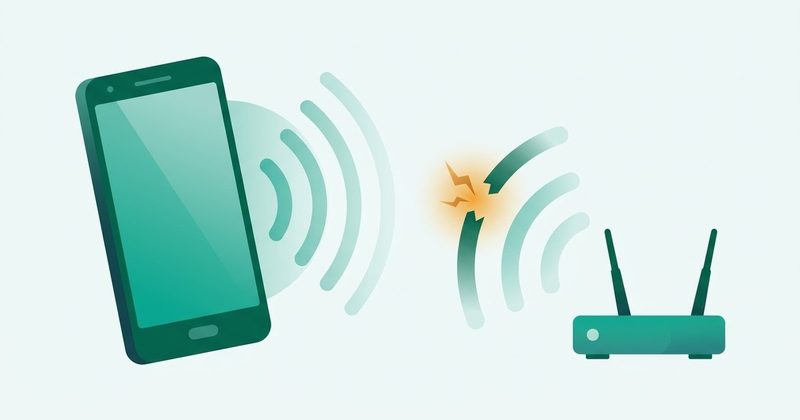
A phone that keeps dropping Wi-Fi is usually not losing the network. It is leaving it. Android decides the Wi-Fi link is weak or has no internet and switches itself to mobile data, and you see the icon flip while everything else looks fine. Fix that auto-switch first, then work down this ladder.
Run this 60-second test before you change anything. Connect another device to the same network: if every device in the house drops, the fault is the router, not the phone. Try your phone on another network, a friend’s hotspot will do: if it holds there, the fault is your router. And if the phone says connected but nothing loads, Google reads that as an internet problem, not a radio problem. The icons tell you the same thing: a question mark means you are on Wi-Fi with no network, an exclamation mark means connected to the network but not to the internet, and a partly filled or blinking icon means the signal is weak or still connecting. One of those three branches is yours. The second question is the shape of the drop.
I run the phone-side steps on my Tecno Spark 40 (HiOS, Android 15), and every path below is copied from Google’s, the vendor’s, or the Android Open Source Project’s own pages. Paths we have not tested on a device are marked as such, so do not read them as our own hands-on finding.
Android Wi-Fi keeps disconnecting: the quick summary
- Turn off the Wi-Fi to mobile data auto-switch first. It is the most missed cause, and it is one toggle.
- Forget the network and rejoin it if it used to work and now drops.
- Wi-Fi connected but nothing loads points at Private DNS or a VPN, not at the router.
- Only one network drops? Your router may be blocking the phone’s randomized MAC for that network. Fix 6 shows the right test.
- If every device in the house drops, stop reading phone steps and go to the router fix.
First: what shape is the drop?
A disconnect that follows a pattern is telling you the cause before you change a single setting. Find your row, go to the fix it names.
| The shape | What it usually means | Start at |
|---|---|---|
| A fixed cycle, every few hours or around the same time each night | DHCP lease renewal, or MAC re-randomization in non-persistent mode (the 4-hour and 24-hour rules in Fix 6). Also check your router’s own manual for a scheduled reboot. | Fix 6, then Fix 7 |
| Only when the screen locks | Battery saver restricting background activity and Wi-Fi scanning | Fix 4 |
| Only on 5GHz, or when you walk between rooms | Band steering or plain coverage: 5GHz is faster but dies sooner through walls | Fix 7 |
| Only on one network, every other Wi-Fi is fine | The randomized MAC for that network conflicts with your router, or the saved profile went bad | Fix 6, then Fix 3 |
| Every device in the house drops at once | Router, firmware, or the internet line itself | Fix 7 |
One shape needs a different post: if the drops started right after a system update, that is the phone rebuilding itself, not a Wi-Fi fault. Start with our slow-after-update guide before you touch anything here.
Fix 1: Toggle Wi-Fi, airplane mode, then restart
This costs two minutes and clears the stuck radio state behind a lot of one-off drops. On stock Android 15, open Settings > Network & internet > Internet, switch the Wi-Fi off, wait a few seconds, switch it back on, then hold Airplane mode on for ten seconds and off. Press the power key and tap Restart. On Samsung the toggle sits under Settings > Connections > Wi-Fi, documented for One UI, and Galaxy owners who want to check the hardware itself can start from our Samsung test codes guide. On the Spark 40 the switch sits under Settings > Network & Internet > Wi-Fi and the power menu gives Restart directly. You know it worked when a page loads and the link holds for half an hour. If it drops again inside the same session, go to the next rung.
Fix 2: Stop the phone switching itself to mobile data
This is the single most missed cause of “keeps disconnecting”. Your phone is not failing, it is making a decision. Google’s own help for Pixel says Adaptive connectivity switches from Wi-Fi to cellular data when there is no internet over Wi-Fi, or when the local Wi-Fi link between the phone and the access point is weak.
The tell is exact. Watch the status bar: the Wi-Fi icon disappears at the same moment mobile data appears. That is your phone choosing, not your router dying.
- On stock Android 15, open Settings > Network & internet > Adaptive connectivity, and turn off Auto-switch to mobile network.
- On Samsung One UI, open Settings > Connections > Wi-Fi, tap the three-dot menu at the top right, then Advanced, and turn off Switch to mobile data. That label is documented for One UI, not device-tested by us.
- On Tecno HiOS, open Settings > Network & Internet > Wi-Fi, tap the three-dot menu, then Advanced, and look for the option that switches to mobile data when Wi-Fi is weak. HiOS wording for this toggle is not covered by any source we could verify, so read the label as “something like this”, not exact.
Labels change with every build. If the path does not match your screen, search Settings for “mobile data” or “Wi-Fi” and read what turns up. If Wi-Fi stays on and still drops, this was not your cause. Go to Fix 3.
Fix 3: Forget the network and rejoin it
This is the highest-value phone fix when the network used to work and started dropping. A saved network profile can go bad, and Android keeps reusing it until you delete it.
- On stock Android 15, open Settings > Network & internet > Internet, scroll to Saved networks, tap the network, and tap Forget. Or touch and hold the network in the list and tap Forget.
- Rejoin it from the same list with Add network, enter the name and password, and save.
On Samsung, press and hold the network in Settings > Connections > Wi-Fi and tap Forget network, then select it again. On HiOS, tapping the network gives you Forget, then you rejoin as normal. You know it worked when it asks for the password again, which proves you built a fresh profile, and the link holds through a screen-off cycle. If the network is hidden, remember to re-tick Advanced options > Hidden network > Yes when you rejoin.
Fix 4: Battery saver and the screen-off drop
If drops cluster around the screen going off, battery saving is your thread to pull. Google’s help says Battery Saver limits or turns off background activity and that network connections may experience delays in this mode. On Extreme Battery Saver, Google states that Wi-Fi and Bluetooth still work, but Wi-Fi scanning and Bluetooth scanning for location turn off. So battery saver does not cut your Wi-Fi outright, despite what blogs repeat: what stops is location scanning, and Google separately states Battery Saver turns off 5G.
Honest framing: Google’s pages support battery saver restricting background activity and scanning. They do not document a “Wi-Fi sleep policy” setting for current Android. The widely repeated advice to set a sleep policy to Never comes from blog posts, not from Google’s help, so treat it as unverified for Android 15 and do not hunt for a menu that may not exist.
What to do instead: open Settings > Battery > Battery Saver, turn it off for one day, and repeat a screen-off cycle. On Samsung the same state sits under Settings > Battery and device care. If the drops stop with saver off, you have found it, and you can decide whether the battery trade is worth it. If the phone also drains fast on its own or runs hot, work that problem there first, because an aggressive phone is often an overheating or worn-battery phone, and improving battery life changes how hard Android fights for power.
Fix 5: Private DNS and VPN, the “connected but nothing loads” pair
One fingerprint separates this cause from the rest: the Wi-Fi icon says connected, and pages still will not load. A manual DNS hostname or an always-on VPN breaks name resolution while the link itself is fine.
- Open Settings > Network & internet > Private DNS. You get three options: Off, Automatic, and Private DNS provider hostname.
- Set it to Automatic as a test and tap Save.
- If a VPN is installed, open Settings > Network & internet > VPN, tap the VPN, open Settings, and turn Always-on VPN off for the test.
Google’s own advice is not to leave Private DNS off: its help says the device uses Private DNS by default with all networks that can use it, and recommends keeping it on. So test with Automatic, and if that fixes the drop, the third-party hostname you typed was the problem, not Private DNS itself. Google also notes that if an always-on VPN stops working you get a notification that stays until you reconnect, which is a useful clue in the status bar.
If pages load fine and Wi-Fi still drops, this was not it. Move on.
Fix 6: The randomized MAC address, the real version of this fix
You have probably read that turning off MAC randomization fixes 90 percent of disconnects. The number traces to one 2026 fix site, devicefixzone.com, unsourced, repeated since by AI content farms. For the default configuration, the claim is wrong, and Google’s own engineering documentation says so. Android 10 and later assign a randomized MAC address to every saved network, and the Android Open Source Project page on MAC randomization behavior, last updated 13 July 2026, states that by default Android uses persistent randomization: “This MAC address remains the same until a factory reset. The MAC address doesn’t get re-randomized if you forget and re-add the Wi-Fi network.” It also states plainly that “Wi-Fi won’t actively disconnect to re-randomize a MAC address.” A stable address cannot create a disconnect loop. Do not turn this off as a miracle fix, because it is not one.
The fix is real in exactly one shape: only your home (or office) network drops while every other Wi-Fi is fine. Your phone’s randomized MAC is a different address from its factory MAC, and if your router runs MAC filtering, a reservation keyed to the old address, or parental controls, the router may be treating the phone as an unknown device. The right move is to register the phone’s randomized address in the router. If you would rather test from the phone side, turn randomization off for that one network: Settings > Network & internet > Internet, tap Settings next to your network, then scroll to Randomized MAC address. It is a privacy feature, so test for a day and switch it back on if the drops do not stop.
Then there is the case nobody covers: when Android actually does churn the address. Non-persistent randomization applies in just two situations, an open network with no captive portal where the manufacturer has switched on an enhanced-randomization overlay flag that is off by default, or a network a suggestion app explicitly asked you to join with it. In that mode, Android re-randomizes only at the start of a new connection, and only if the DHCP lease has expired and more than 4 hours have passed since the device last left that network, or if the current randomized MAC is more than 24 hours old. That is the mechanism behind “it drops every four hours” and “it drops every night”. Android 11 and later carry one switch for all networks at Settings > Developer Options > Wi-Fi non-persistent MAC randomization, documented by AOSP but not confirmed present on every HiOS build. If yours is on, switch it off unless you are testing on purpose. If every network drops, MAC is not your cause at all.
Fix 7: Router-side, after the phone steps
Do these last, because a phone with no working connection usually cannot reach the router’s admin page anyway. First prove the fault is wireless-only. Connect a computer to the router with an Ethernet cable. If the wired connection is stable and Wi-Fi keeps dropping, the problem is wireless-specific, which TP-Link names as the defining symptom. If wired is unstable too, the fault is upstream at the modem or your provider, and no router setting will fix it. Then, in the router’s admin page, which TP-Link, NETGEAR and Google document but we have not tested on a specific router: set 2.4GHz to channel 1, 6 or 11 at 20MHz, because those three channels do not overlap (NETGEAR: 5MHz spacing against 20MHz width); turn off band steering to test, the feature TP-Link describes as the router choosing the stronger band for you, and connect to one band deliberately, after which the 5GHz name usually gains a _5G suffix; give the bands separate names so your phone stops flip-flopping under one SSID; update the router firmware, which TP-Link and Samsung both list as a cause of instability; and restart the router by unplugging it for 15 to 30 seconds, both figures come from Google’s own help pages. If one device drops while others stay, you likely have an IP conflict: on Google and Nest routers, reserve the address in the Home app under Wifi > Network settings > Advanced Networking > DHCP IP reservations. Google’s reader-facing help documents no static IP path on the phone itself, so use the router reservation. If your phone also runs warm while doing all this, our overheating guide covers that separately.
Fix 8: Update the software at both ends
If the drops started right after an update, they may belong to a bug that a later build fixes. On the phone, open Settings > System > System update; on Samsung it sits at Settings > Software update, and Samsung warns that updating over mobile data may cost you. On the router, install the latest firmware. A phone with no free storage cannot install the update that might fix this, so if space is tight, free some up first. And if the whole phone, not just Wi-Fi, went strange after the update, go back to the slow-after-update guide instead of walking this ladder twice.
Fix 9: Reset Bluetooth and Wi-Fi settings
This clears every saved network and re-pairs nothing. Google’s warning is exact: this option deletes your saved Wi-Fi connections. Samsung adds that you will need to reconnect to your Wi-Fi network and Bluetooth accessories after the reset. On stock Android 15 the path is Settings > System > Reset options > Reset Bluetooth & Wi-Fi, and on Samsung it is Settings > General management > Reset > Reset Wi-Fi and Bluetooth settings. State the scope plainly: this deletes saved Wi-Fi passwords and unpairs Bluetooth. It does not erase photos, apps or files, and Samsung is explicit that this tier will not erase your apps or data. If you want the narrower option, Google also documents Settings > System > Reset options > Reset mobile network settings, which leaves Wi-Fi alone. And the rung after this one, a factory reset, is almost never the right fix for Wi-Fi alone: Google says plainly that a factory reset erases all your data and advises trying other solutions first. Keep it as the last resort it is, back up if you ever reach it, and note Google’s warning that you should not factory reset within 24 hours of changing your Google Account password.
Fix 10: Safe mode, is an app doing this?
A bad app can hold a wake lock against your Wi-Fi radio. Google’s own logic is clean: if the Wi-Fi works in safe mode, a downloaded app is most likely causing the issue; if it does not work in safe mode, the problem is likely the network or the internet connection. VPN apps, security and booster apps, and ad blockers show up here most often.
One gotcha Google documents: airplane mode turns on automatically when you enter safe mode, so turn it off before you test, or you will test nothing. To test, restart your phone into safe mode, watch the connection, then restart normally and uninstall recently added apps one by one, testing after each. If the app you find is worse than an annoyance, our malware removal guide covers the full cleanup.
How to check whether the fix worked
Do this after every rung, not just the last one. Watch the shape you came in with through one full cycle. If it dropped on screen lock, lock the screen, leave it twenty minutes, and come back. If it dropped on a fixed interval, keep the phone connected and idle past that interval; a change that holds for four hours is a change that held. The cheapest honest test is one night: rejoin the network, leave the phone sleeping beside the bed, and see whether it holds until morning. If it holds a full day, the rung fixed it. If the drops return, undo that change, because you now know one more thing that is not the cause, and move to the next rung.
What I could not fix on a Tecno Spark 40, and what I would check next
The honest limits of this guide. Device: Tecno Spark 40, HiOS, Android 15. Date: the phone-side menu paths were walked on 30 September 2026. What that covered: the stock Android 15 paths in Fixes 1, 2, 3, 5 and 9, and confirming that no source we could verify prints the exact HiOS label for the mobile-data switch, which is why Fix 2 tells you to read a label “something like this”. What was not tested on any device: every Samsung One UI path, the Google Home and Nest reservation path, all TP-Link and NETGEAR admin steps, and whether this HiOS build exposes the non-persistent MAC toggle at all. No router was configured for this post. What I would check next on my own phone if the drops came back: the 2.4GHz channel settings in Fix 7, then the Bluetooth and Wi-Fi reset in Fix 9, then safe mode to catch an app. You can see exactly how we test on our testing page.
FAQ
Why does my Wi-Fi disconnect when the screen turns off?
Battery saving is the usual suspect. Google says Battery Saver limits or turns off background activity and that some network connections may be delayed. It does not cut Wi-Fi outright: Google states Wi-Fi and Bluetooth keep working even in Extreme Battery Saver, while Wi-Fi and Bluetooth scanning for location turn off, and Battery Saver separately turns off 5G. Turn Battery Saver off for a day and repeat a screen-off cycle to confirm it.
Does this work on Samsung?
Yes. Samsung documents the same ladder in One UI language: restart, check for updates, forget the network under Settings > Connections > Wi-Fi, and reset through Settings > General management > Reset. Samsung says menu names vary by model and version, so read the label, not just the path.
Will a network reset delete my photos?
No. Samsung states the network reset tiers will not erase your apps or data, and after a Wi-Fi and Bluetooth reset you only need to reconnect your networks and accessories. Google warns only that it deletes your saved Wi-Fi connections. Only a factory data reset erases photos, apps and personal settings.
Why does Wi-Fi show connected but nothing loads?
That is the DNS or VPN fingerprint. Check Private DNS at Settings > Network & internet > Private DNS and any always-on VPN. Google reads an exclamation mark on the Wi-Fi icon as connected to a network but not to the internet. Test with Private DNS on Automatic, then keep it on, because Google recommends leaving it enabled.
Why does it only drop at home and not on other Wi-Fi?
Google’s isolation test answers it: if your phone connects fine on another network, the problem is most likely with that network. Then it is router work: check the randomized MAC against your router’s filters (Fix 6), restart it, set 2.4GHz to channel 1, 6 or 11 at 20MHz, disable band steering to test, and update the firmware.
Will turning off randomized MAC hurt my privacy?
Yes, it is a privacy feature, so treat it as a per-network test and switch it back if it does not help. And know the truth first: by default the randomized address is persistent and does not churn, so turning it off fixes only the router-filter case, not the 90 percent that blogs claim.
My other devices stay connected, only my phone drops. Whose fault is it?
Google’s test reads this directly: if other devices use the network fine, the problem is most likely with your phone. TP-Link frames the mirror case, where wireless devices drop while wired devices stay stable, as wireless-specific, which points at the router’s Wi-Fi. Do the isolation test once and you will know which side to work.
Bottom line
Most dropping Wi-Fi I meet is not a broken radio. It is one decision the phone made on your behalf, the switch to mobile data. Turn it off, run the 60-second test once so you know which side you are fixing, then work down the ladder from the top. If every device in the house drops at once, that is an internet problem and a technician answers it faster than any setting will. For the full field of common faults, start with our Android problems fix guide, and if the drops feel like a device that is finally giving up, our used phone checks tell you how to confirm it before you spend money. When you are ready for the next fault, the rest of the troubleshooting shelf is one tap away.
Comments
New posts held for reviewCouldn't load comments - the thread service didn't answer. Nothing is hidden: there are no approved comments saved with this page.
No approved comments yet - the first one is yours. New posts are held for review before they appear.