 By
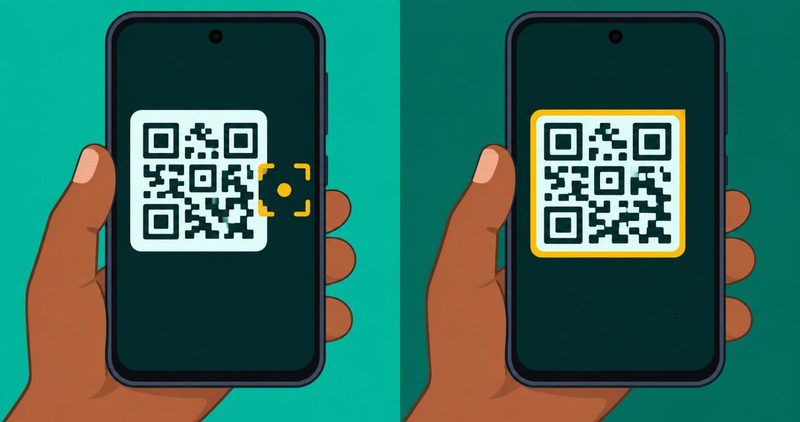
You point the camera at the sticker on the bank counter. The bubble never comes. The gate at the market reads it in one look, and your phone stares back. This guide is for that moment, when the camera opens fine and the code in front of it refuses to read.
The camera app opens, the viewfinder works, and the code is never detected: this is that fault, and this post walks it. If the camera app will not open at all, crashes, or captures nothing, that fault lives in our apps crashing post, not here.
Your phone already scans QR codes with its own camera. No scanner app needs installing first. This post sorts where the scanner hides, what breaks a reading, and what to try, in that order. Every fix on this page is printed with its maker or community page, or it is a Settings search string, or it does not print. Every other fault we have written sits in our Android problems hub.
The order that finds the fault
- Good light, steady hand, full code in frame. Most misses die here.
- Toggle the scan switch off, then on. Samsung and Pixel owners have it named for you.
- Test a second code. If it reads, the first code is the fault.
- Close apps that use the camera. A flashlight or scanner app can block the scan.
- Stop at Carlcare when nothing holds.
Where the scanner hides
The scanner is already on the phone. This section names where it hides on Pixel, on Galaxy, and on the reader's brands.
The camera app, for everyone
android.com and both Carlcare pages print the same first route. Open the camera app, point it at the code, wait. android.com's QR guide, read on 12 November 2026, prints it as three steps. That is the first door on every phone this post covers.
On a Pixel
On a Pixel, the toggle has a name. Google Pixel Phone Help, read on 12 November 2026, prints it as Settings, then More settings, then Camera scan suggestions. The Pixel page scopes it to Pixels. Tecno and itel publish no such name. The same page adds a Quick Settings route: swipe down from the top, tap Scan QR code. If you do not see it, swipe left, or tap the pencil to add it.
On a Samsung
On a Galaxy, the toggle has a name too. Samsung's UK page, updated 6 October 2026 and read on 12 November 2026, prints it like this:
- "Please note: If the QR Code won't scan you may need to enable it by going to: Camera > Settings icon > Toggle on Scan QR codes."
That is Samsung's fault note, for Galaxy phones. No other maker read for this post prints one. The same page prints a Quick Settings route: swipe down, tap Scan QR code, and the Camera app opens. The same page also names Bixby Vision as a further scan route, Samsung devices only.
On a Tecno, Infinix or itel
None of the three publishes a QR page. Tecno's FAQ, read on 12 November 2026, carries zero mentions of the word. itel's FAQ, read the same day, carries zero as well. So this post prints no HiOS path and no itel path. The Tecno reader's path is the camera app, whatever it is called on that device. Search Settings for qr and take whatever it offers. That is all the first-party guidance you get today.
Circle to Search, for codes already on screen
One route is for codes that are already on your phone. Press and hold the home button, or long press the navigation bar with gesture navigation. Circle the code with your finger. Circle to Search scans it. android.com prints it as currently available on selected Android devices. On Android 15 phones that ship the feature, this is the on-screen route.
What breaks a reading
Four things break a scan. The code, the light, the apps holding the camera, the scanner switch itself.
The code itself
Damage, glare, size, colour and redundancy all play. A code printed on a crumpled receipt may never read. One thread on r/qrcode from 13 February 2024 shows the shape of it. A boss's three-year-old phone read the code, while the poster's Moto g Stylus would not. Replies in that thread, read on 12 November 2026, name redundancy too low or too high, printing, colours and lighting. It is one thread only. If a second code reads fine, the first code is the fault.
The light
The Pixel troubleshooting branch names good lighting, a steady hand, a clean lens and getting closer. This post quotes the light line. Google Pixel Phone Help, read on 12 November 2026: "Get good lighting: Scan the code in a well-lit area. Avoid shadows or glare on the code." If shadows or glare sit on the code, fix the light before anything else on this page. Move until the glare moves off the square.
Apps holding the camera
A third-party app can hold the camera and block every scan. itel's own FAQ, read on 12 November 2026, prints the seam without naming QR. It tells owners to close any apps that use the camera, such as third-party flashlight or scanning apps, then try again. Close every camera-using app, then try. If a downloaded app is the suspect, our safe mode guide shows how to isolate it.
The permission
Open Settings and search for camera. Your phone lists the camera app's permissions on that screen. No maker page read for this post prints a QR permission line. So this post prints the search string only, not a path.
The scanner switch itself
On a Galaxy, the switch is Camera, Settings icon, Toggle on Scan QR codes. On a Pixel, it is Camera scan suggestions. If your maker publishes no switch name, and none of the three readers' brands does, search Settings for qr and take what you find.
The check order, before anything else
Work these in this order. Each step is quick, and each one rules something out.
| Step | What you do | Whose words |
|---|---|---|
| 1. Toggle the switch | Turn the scan switch off, then on | Galaxy: Samsung's page. Pixel: Google's page. Others: search Settings for qr |
| 2. Fix the light | Well-lit area, steady hand, no shadows or glare, whole code in frame | Google Pixel Phone Help, read 12 November 2026 |
| 3. Test a second code | A bank teller code, a poster, your own screen | If it reads, the first code is the fault |
| 4. Clear the camera cache | Search Settings for camera, open the Camera storage entry, clear cache | A search instruction. No maker page names it for this fault |
| 5. Close camera apps | Flashlight and scanner apps, then restart the phone | itel's FAQ line, read 12 November 2026 |
Two maker pages carry a fault tip worth quoting. Carlcare Nigeria, dated 2022-10-23 and read on 12 November 2026, prints it as a quick tip:
- "Quick tip: if your camera doesn't recognize the QR code, close and reopen the camera or move the QR code so that it doesn't fill the screen."
Carlcare Kenya, dated 2021-10-15 and read on 12 November 2026, prints the matching tip:
- "If your phone recognizes nothing after 2-3 seconds, you need to enter a scanning mode first. Look for modes like Lens, Scan, or something similar in the camera menu."
Those are the two maker-side tips for this fault on the reader's brands. Both are tips, quoted as tips. Neither page prints a fault order, and neither prints a HiOS path.
What Tecno, Infinix and itel publish, and what they do not
Here is what your brands publish. None of them ships a QR fault page.
Tecno's FAQ, read on 12 November 2026, carries zero mentions of the word. Infinix's own site shows QR only around eSIM activation and promotional material, seen on the same day. itel's FAQ is silent on it. Carlcare, the service arm behind all three, publishes two how-to pages and no fault tree for this symptom.
The Kenya page is the closest thing the brands have to official guidance. It names TECNO, Infinix and itel phones running Android 9 or later as covered. It still prints no HiOS path and no Tecno setting name. So this post does the same.
One honest answer exists today for every Tecno, Infinix and itel reader. Open Settings and search for qr. The search bar matches every label on the phone. Whatever it offers you is what your phone offers you.
What the reader on a Spark 40 does next
My house phone is a Tecno Spark 40. This is the order I would run on it, in five lines.
- Open the camera app, point it at the code, and wait a few seconds.
- Good light, steady hand, the whole code inside the frame.
- Point the camera at a second code, any second code. Watch what happens.
- If the code sits on another phone's screen, use the on-screen route: Circle to Search, on devices that ship it.
- If nothing holds, take the phone to Carlcare. The Nigeria how-to ends the same way: "get in touch with the nearest expert professional phone repair service."
I did not run this sequence on the Spark 40 before publishing. Every line above is a first-party line, a community line, or a Settings search string.
Questions readers ask
Why won't my phone scan a QR code?
Work the check order. Toggle the switch, fix the light, test a second code, close camera apps. One of those four is almost always it.
Where does the QR scanner hide on my phone?
In the camera app, on most phones. Carlcare Kenya puts it plainly: no third-party app to get started. Quick Settings tiles exist on Pixel and Galaxy phones. Everyone else: search Settings for qr.
Can a code on my screen be scanned?
The camera case covers codes out in the world. For codes on your screen, android.com routes to Circle to Search, on selected devices only. One community thread claims a November 2025 Android update changed how on-screen codes display, so older ticket scanners stopped reading them. No maker page confirms it.
Do I need a third-party scanner app?
No. Carlcare's Kenya page says you can scan without one. This post recommends none.
Do I need internet to scan?
Carlcare Kenya puts it this way. The page is dated 2021-10-15: "you can scan QR codes on most Android phones as much as you have an active internet connection."
What I tested on my Tecno Spark 40, and what I could not
The house phone is a Tecno Spark 40 on Android 15, HiOS. For this post, I did not run the phone. No label on this page is confirmed on the device. The checklist above is first-party lines, community lines, or Settings search strings you can run yourself.
No HiOS scan setting is published anywhere this post could read. The Samsung and Pixel toggle words do not exist on HiOS as far as any source read today can say. If a path did not verify on 12 November 2026, it is not printed here.
The November 2025 story is one thread on Google's Android Community, read on 12 November 2026. No maker page read for this post confirms a November 2025 change for QR codes. What is not printed here does not exist in any source I could read on 12 November 2026.
Bottom line
The camera scans. Toggle the switch, fix the light, check the code, close the camera apps. Work them in that order. If the camera app will not open at all, that is another fault, and the apps crashing post covers it.
If the sequence rules out settings, code, light and apps, the branch is a repairer or the code's owner, never a purchase. Carlcare's Nigeria page ends the same way. Every other fault we have written sits in our Android problems hub.
Comments
New posts held for reviewCouldn't load comments - the thread service didn't answer. Nothing is being hidden: no approved comments are saved with this page.
No approved comments yet - the first one is yours. New posts are held for review before they appear.