 By
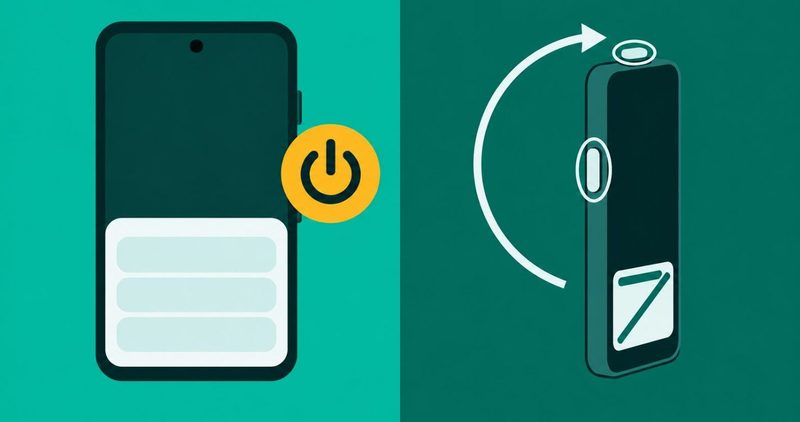
Safe mode puts a label at the bottom of the screen and switches off the apps you downloaded. You did not ask for it, and now you cannot find the way out.
Leaving safe mode takes one restart. The harder half is knowing the restart worked and reading what the result tells you. I test on a Tecno Spark 40, so I walked the HiOS path with my own hands. The Galaxy and Pixel steps come from those makers' own support pages, read on 9 November 2026.
How to remove safe mode on Android: the quick summary
- One restart gets you out. Google's own wording is that you can usually restart your phone normally to exit safe mode.
- Safe mode reads apps only. It says nothing about your battery, your storage or your screen.
- The way in depends on your maker. Google sends you to the manufacturer, so no single button hold works on every phone.
- Airplane mode comes on by itself. Turn it off before you test anything.
- Some home screen widgets go. Google says to take a screenshot first.
- A phone that boots into safe mode on its own may have a fault on the Volume Down button. That is a service desk question.
Why the phone is in safe mode when you did not ask
You land in safe mode two ways. You asked for it and forgot, or a key was held down at the wrong moment. Google's safe mode guide says "Restarting in safe mode varies by phone", and sends you to the maker for the exact buttons. The same guide warns that "Safe mode removes some Home screen widgets", so take a screenshot of your home screen before you go in. Google's own Pixel support says airplane mode comes on by itself when you enter safe mode, so switch it off before you test anything. Our Wi-Fi guide has the longer version of that test.
What safe mode switches off
Safe Boot Mode has a plain definition. The Android 16 compatibility rules call it a mode "where only preinstalled system apps are allowed to run and all third-party apps are disabled". The apps that came with the phone keep running. Safe mode changes which apps run, and it does not wipe the phone. The same rules let you uninstall an app while you are inside safe mode.
Safe mode is a test, not a shield. Google's kernel security notes say that in safe mode "third-party apps may be launched manually by the device owner but aren't launched by default". A phone in safe mode is not protected from a malicious app. Our malware removal guide is where that work starts.
The mode tests the apps you installed, and nothing else. A worn battery and a failing screen behave exactly the same inside safe mode. It reads nothing else, so it settles nothing else.
The way in, one path per maker
There is no single button hold for every phone. The paths below come from each maker's own instructions, so match your phone and its software build before you press anything.
| Your phone | With the phone on | With the phone off | How to leave it |
|---|---|---|---|
| Pixel 5a or earlier | Hold Power for a few seconds, then tap Power off on the screen | Press power, then hold Volume Down when the animation starts | Restart |
| Pixel 6 or later, including Fold | Hold Power and Volume Up together for a few seconds, then tap and hold Power off or Restart and tap OK | Press power, then hold Volume Down when the animation starts | Restart |
| Samsung Galaxy | Hold Side and Volume Down together, then touch and hold Power off and tap Safe mode | Power it off, turn it on, then hold Volume Down when the Samsung logo appears | Restart, or tap the Safe mode notification and then Turn off |
| TECNO, Infinix and itel | Hold Power, then long press the HiOS or XOS logo where Power off sits, then tap OK | Carlcare publishes only the power menu route | Restart |
For a Pixel, the route depends on the model. Google's Pixel support gives both paths. On a Pixel 5a or earlier, press and hold Power for a few seconds, then tap Power off on the screen. On a Pixel 6 or later, including the Fold, hold Power and Volume Up together for a few seconds. Then tap and hold either Power off or Restart on the screen, and tap OK. With the phone off, press power and hold Volume Down when the animation starts, until the animation ends.
For a Galaxy, Samsung's own support page publishes two ways in. With the phone off, power it down completely, turn it on, and when the Samsung logo appears press and hold Volume Down. "Safe mode" then shows at the bottom left corner. If it does not show, repeat the steps. With the phone on, press and hold Side and Volume Down together, or swipe down from the top right and tap the Power icon. Then touch and hold the Power off icon and tap Safe mode. Samsung's page warns about one thing on the way out. "When you exit Safe mode, some of your customization options (wallpapers, themes, etc.) may be reset to defaults". Take a screenshot of your home screen before you restart.
For a TECNO, Infinix or itel phone, the route sits under the logo. Hold Power until the power menu shows, then long press the Power off option. A "Reboot to safe mode" pop-up appears, and you tap OK. Carlcare's guide is specific about TECNO and Infinix. It says "rebooting a TECNO or Infinix device into safe mode requires long-pressing the HiOS or XOS logo in the power menu". Carlcare is also the official service provider for these three brands, so they are the people to see if the phone keeps doing it.
Our own Spark 40 walked that HiOS route. We did it while chasing horizontal lines on the screen, so the steps are not guesswork on our unit. Labels move between builds, so search Settings for safe mode if the wording on your phone differs. If your phone is old enough that none of these screens exist, your maker's support page is the place to look.
The way out, step by step
The exit is a restart, and the makers agree on that. Google, Samsung and Carlcare all publish a restart as the way out. Work through these steps and stop when the phone comes back normal.
If the phone will not restart from the menu, Samsung Australia's support page gives a second route. Hold Volume Down and Side together for 7 seconds. The same source names the hardware reason a phone can keep booting into safe mode. It says "there may be something physically wrong with the Volume Down button". When that keeps happening, the fix is a service location, not another restart.
When the phone is frozen and the screen is on, Google's frozen phone page says to hold down the power button. Keep it down for about 60 seconds, and the phone restarts. The same page puts a factory data reset under advanced troubleshooting. It warns that a reset removes all your data, and tells you to back up first. It also says a phone can start having issues when less than 10% of storage is free.
Do not wipe the phone to escape safe mode. A restart leaves safe mode. A factory reset is a different job, and a reset inside recovery mode is not the exit either. That is the step most likely to cost you the photos on the phone.
What a clean result means, and what it does not
Google's wording here is careful. If the fault goes away in safe mode, "an app is likely causing your problem". If it stays, "an app isn't causing your problem". Likely is not certain, and the mode names no app.
The hunt is one app at a time. Google tells you to remove recently downloaded apps one by one. Restart normally after each removal, and put back the ones that turn out to be innocent. On a full phone, that hunt takes about an hour by my estimate. Our crashing apps guide runs the safe mode test against a crash.
A clean result does not mean malware. It means an app is involved, and it does not tell you which one. Safe mode says nothing about what the app intended, and nothing at all about whether the phone itself is healthy.
When to stop restarting, back up, and take the phone in
Stop when the fault survives safe mode. The app hunt is over, and more restarts will not move it.
Stop when the phone boots into safe mode on its own, again and again. Samsung Australia names the reason: a physical fault on the Volume Down button. The fix is Samsung support or a service location, and no price is published for it.
Stop when the phone will not respond at all and a restart has already been tried. Google gives the long hold for a frozen phone, and the phone has had it.
Back up before you reset anything. A factory data reset "will remove all data from your phone", and Google tells you to back up before you perform one. Your photos, your chats and your authenticator codes go first if you skip it.
Two more faults safe mode cannot see, with a guide for each. A worn battery can end your day while the phone behaves perfectly in safe mode. Our battery guide shows how to read the health figure. Low storage does the same, and our storage guide shows the path to your free space.
A screen that has stopped answering needs its own test. Our touchscreen guide shows the free tests that tell a dead panel from an app fault.
A phone that still crashes in safe mode, with free storage and a healthy battery, has been through the software checks on the pages above. That is a repair desk question. For a TECNO, Infinix or itel phone, Carlcare is that desk. If the phone has a dead power button, this post cannot help. None of the pages named above prints an exit for that case.
A phone that is slow after an update but still boots is in our slow after update guide. A phone that will not boot, or one stuck on the logo, is in our boot loop guide.
Questions readers ask
Will a factory reset get my phone out of safe mode?
No. A restart gets a phone out of safe mode, and Google puts a factory reset after the other steps, not before. A reset wipes the phone, and the photos on it.
Why does my phone boot into safe mode on its own?
Samsung Australia says a physical fault on the Volume Down button is possible when it keeps happening after every restart. When it keeps happening, the fix is a service location, not another restart.
Does safe mode delete my apps?
No. Safe mode disables the apps you downloaded and leaves your files alone. The Android rules let you uninstall an app while you are inside safe mode, so removing one is your decision.
Can I use my phone while it is in safe mode?
Yes. Airplane mode comes on by itself when you enter safe mode, so turn it off and your calls, GPS and Wi-Fi work again. Our Wi-Fi guide has the longer version of that test.
Are my home screen widgets gone?
Some of them. Google says safe mode removes some Home screen widgets, and that you can put them back after you leave. Take a screenshot before you go in.
Is my phone protected from malware in safe mode?
No. Third-party apps may be launched manually by the device owner in safe mode, so it is not a security lock. Our malware removal guide is where the cleanup starts.
The bottom line
Safe mode leaves on a restart, and a factory reset stays the last step, not the exit. Read the result honestly: if the fault goes, an app is involved, and if it stays, the phone is not an app problem. Back up before you reset anything, and take the phone to a service desk when the software checks run out. For the rest of the fixes, our Android problems hub holds the full list.
Comments
New posts held for reviewCouldn't load comments - the thread service didn't answer. Nothing is being hidden: no approved comments are saved with this page.
No approved comments yet - the first one is yours. New posts are held for review before they appear.